USB-C to HDMI Adapter vs. Hub: What Do You Need?
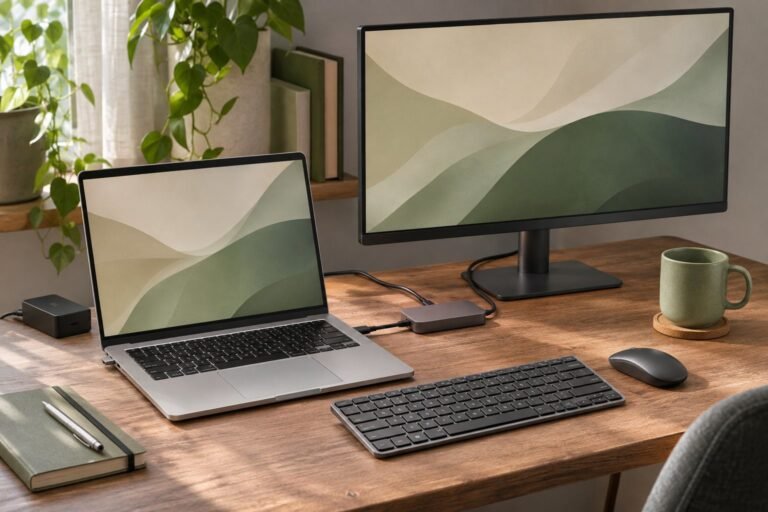
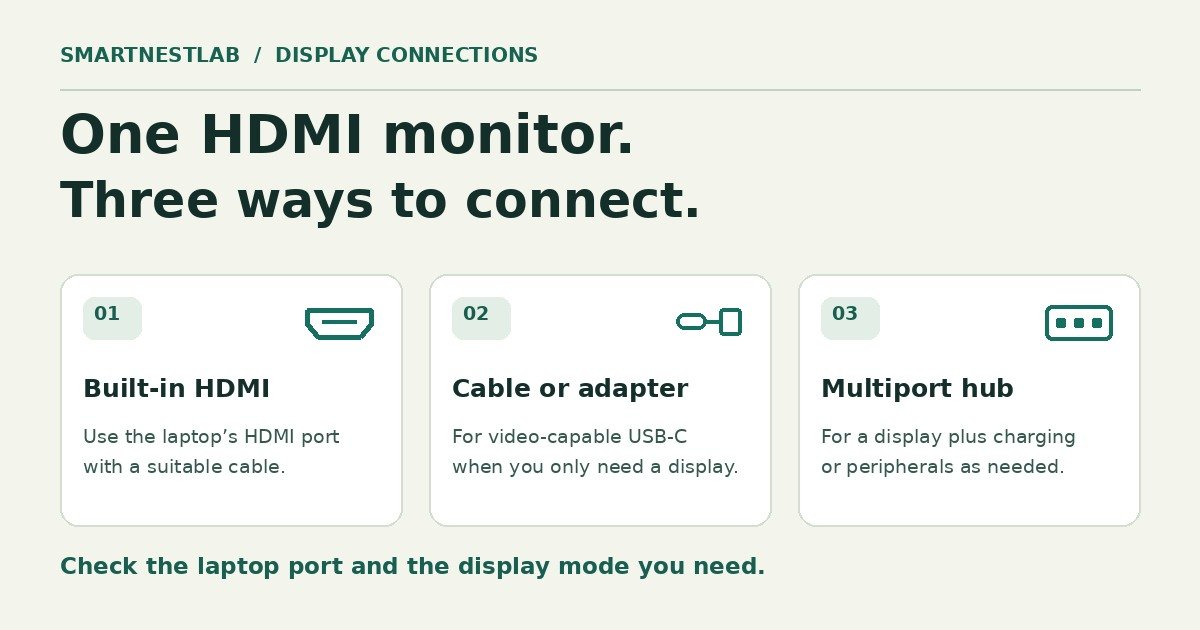
If you need to connect one HDMI monitor to your laptop, start with the ports you already have. Built-in HDMI and a suitable cable may cover the job. If you need to use a video-capable USB-C port, a USB-C-to-HDMI cable or a small adapter can be enough for the display alone. A hub makes sense when you also need a charger connection or other peripherals through the same laptop port.
Choose by what you need to connect
- One HDMI monitor and a laptop with HDMI
- Use the laptop’s HDMI port and a cable that supports your display mode. Keep your existing charger connected separately if that fits your desk.
- One HDMI monitor and a video-capable USB-C port
- A USB-C-to-HDMI cable gives you one cable run. A small USB-C-to-HDMI adapter with a female HDMI port lets you keep or replace your existing HDMI cable separately. Check that the accessory is designed for a USB-C source and an HDMI display.
- One HDMI monitor, plus power or accessories through the same laptop port
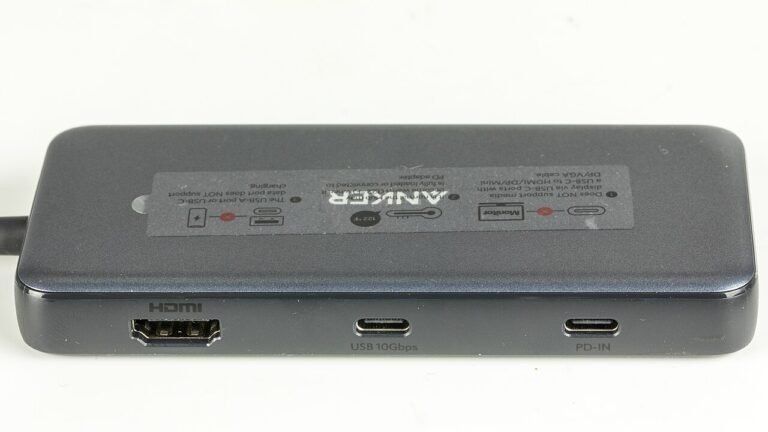
- Look for a multiport adapter or hub with the exact combination you need. Check for HDMI, a dedicated USB-C Power Delivery input if you need charging, and the right data ports for your accessories.
Check the laptop port before buying
Find your exact laptop model and match the physical USB-C port to the manufacturer’s manual. Look for DisplayPort Alt Mode or explicit external display support. A port may support charging or USB data without supporting video. VESA’s DisplayPort over USB-C overview explains how compatible USB-C ports can connect to HDMI displays through adapter cables or plug adapters.
For 4K at 60 Hz, verify the mode across the source port, adapter or hub, cable, and monitor input. A “4K” label on its own leaves the refresh rate unclear. Check the model number, too. For example, Apple’s Digital AV Multiport Adapter guide gives different limits for A2119 and A1621 and lists which devices support 60 Hz with A2119.
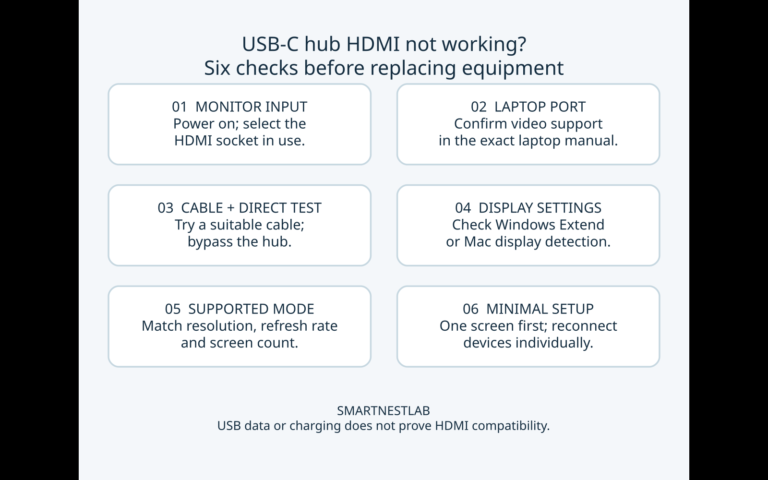
If your monitor already shows a blank screen, start with the cable and direct-connection checks. A replacement adapter cannot add native USB-C video to a data-only port.
Decide whether you need charging on the same cable
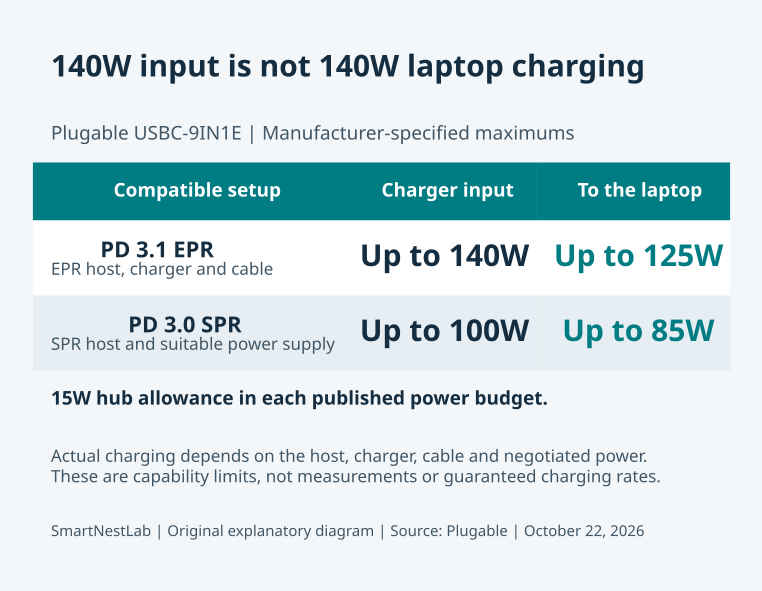
A display-only cable or adapter can be a good fit when you already have a separate charging connection. If the laptop’s only available USB-C port also needs to charge it, choose a hub or multiport adapter with a documented Power Delivery input. Verify the power it can deliver to the laptop with a suitable charger and cable. The hub’s advertised input rating and its output to the laptop can differ.
For example, if your laptop has a dedicated charger port and you only need one external display, try the direct path first. If the same USB-C port must also carry power and connect a keyboard or Ethernet, write down those requirements before shopping.
Before You Buy: Check Your One-Monitor Setup
Match your setup below. For 4K at 60 Hz, confirm the mode across the laptop output, any adapter or hub, the cable, and the monitor input.
Built-in HDMI · one monitor
Check that the laptop’s HDMI output, your existing cable, and the monitor input support the resolution and refresh rate you want. Try that connection first.
Video-capable USB-C · one monitor, separate charging
Already have an HDMI cable? Look for an adapter with a female HDMI port so you can reuse it. Otherwise, compare one-piece cables designed for a USB-C source and an HDMI display. The StarTech CDP2HDMM1MH spec sheet gives an example rated up to 4K at 60 Hz.
Video-capable USB-C · monitor, charging, and accessories
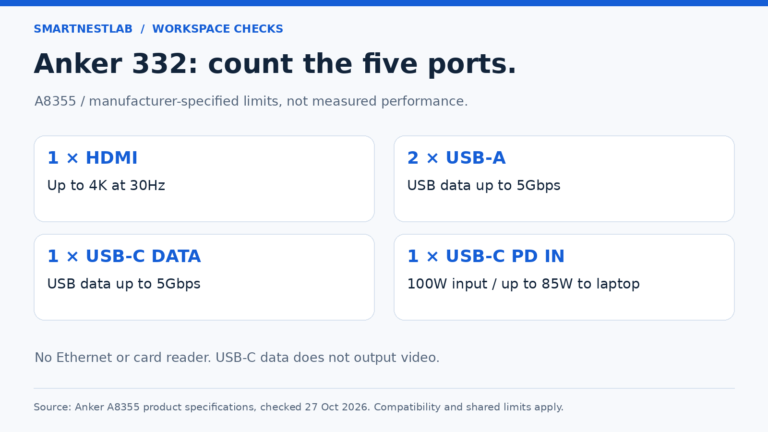
Check the laptop’s video support, your target refresh rate, the hub’s charging input and laptop output, and the ports you need. Anker rates the 332 (A8355) for up to 4K at 30 Hz. The Anker 555 (A8383) supports up to 4K at 60 Hz in a compatible setup, with up to 100 W charging input and 85 W to the laptop. Compare single-monitor hubs or Check the Anker 555’s video and OS requirements before ordering.