USB-C Hub HDMI Not Working? 6 Checks Before You Replace It
If your USB-C hub HDMI output is not working, check the display path before replacing the hub. Confirm the monitor input, laptop port, cable and display settings. A working keyboard or charging icon does not establish video compatibility.
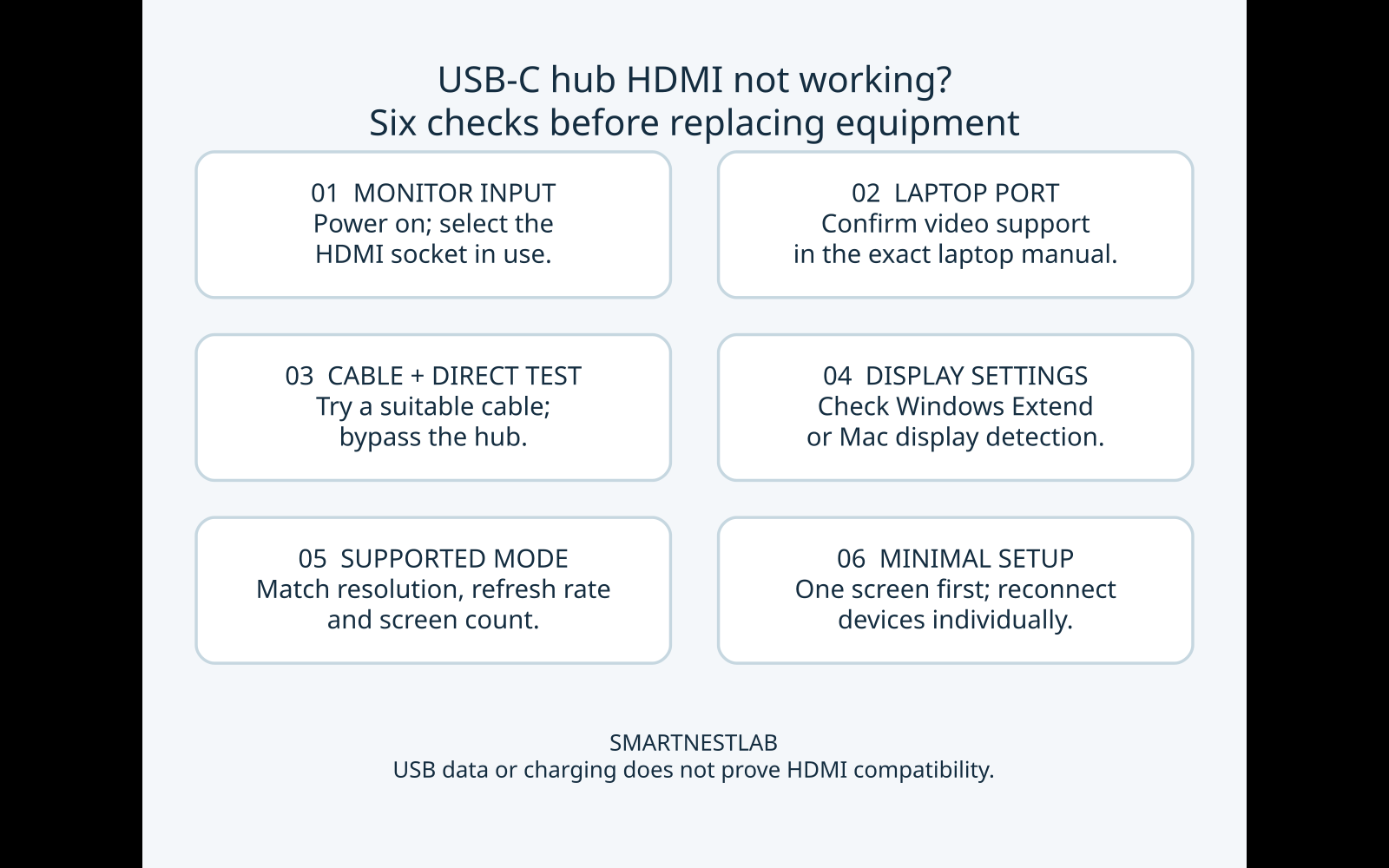
This is a documentation-based troubleshooting guide, not a hands-on test. Original sources were checked October 21, 2026; the port-capability check was reviewed November 2, 2026. The diagram below summarizes the troubleshooting sequence.
Start with the symptom you can see
No picture at all
Start with the selected monitor input, then check the laptop port’s video support.
Start the blank-screen checks →Two screens show the same thing
A mirrored desktop is a different symptom from no HDMI signal. Check the supported screen arrangement.
Check independent-display support →It fails after sleep or wake
Record whether the display stays listed and whether reconnecting changes the result.
Rebuild a minimal setup →Choose the closest symptom to find a starting check. This does not identify the failed component.
1. Select the Monitor’s Actual HDMI Input
Power on the monitor and open its own menu. If the cable enters HDMI 2, select HDMI 2 rather than another input. Reconnect both cable ends securely. Save work and safely eject storage before disconnecting a shared hub.
2. Confirm That the Laptop Port Outputs Video
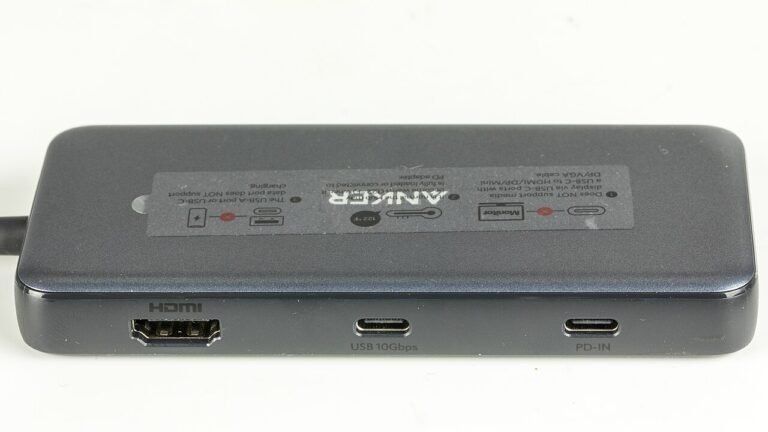
Find the exact laptop model and intended USB-C port in its manufacturer manual. Conventional USB-C HDMI hubs require a supported video path, commonly DisplayPort Alt Mode. Microsoft’s USB-C guidance explains that the computer, connection and adapter must support the relevant capabilities.
Why does USB work but HDMI fail? USB data, charging and video are separate functions. Another USB-C port may differ. A charger or display setting cannot add native video support to a data-only port. Software-based USB graphics docks need their own manufacturer instructions.
What should the laptop specification actually say?
Open the official manual for your exact laptop model. Search for USB-C, DisplayPort and external display, then match the description to the physical port you are using. Similar-looking ports can have different capabilities.
| What you find | What it establishes | Your next step |
|---|---|---|
| Explicit DisplayPort Alt Mode or USB-C display-output support | A documented native video path for that port; not compatibility with every display mode. | Compare the hub’s requirements, supported resolution, refresh rate and screen count, then continue with the cable test. |
| Only a USB data speed or Power Delivery rating | Data or power information. It does not establish video support; an omission is not proof that video is impossible. | Ask laptop support to confirm video output for that exact port before buying another conventional HDMI hub. |
| Explicitly data/charging only, with no video output | The conventional DP Alt Mode hub path is unsupported. | Use another documented display connection. A software-based graphics dock is a separate compatibility choice, not a setting that enables native video. |
Two real examples from Lenovo’s specifications
- IdeaPad 1 15AMN7. Lenovo lists its USB-C 3.2 Gen 1 port as data-only. A conventional HDMI hub that relies on DisplayPort Alt Mode can’t get video from that port. Check whether the laptop’s separate HDMI 1.4b port supports your desired display mode. Lenovo specifications, pp. 1 and 5.
- ThinkPad E14 Gen 6 (AMD). Lenovo lists DisplayPort 1.4 on both the 5Gbps and 10Gbps USB-C ports. That establishes video support on either port. Check the hub, cable, and monitor for the resolution and refresh rate you want. Lenovo specifications, pp. 1 and 6.
These examples come from manufacturer documentation. For your own setup, match the manual to your exact laptop model and port.
Still unclear? Ask: “Does USB-C port [location] on [exact laptop model] support video through a DisplayPort Alt Mode HDMI hub at [resolution and refresh rate]?” Include the hub model. VESA’s DisplayPort-over-USB-C explanation describes the video path. Capability check reviewed November 2, 2026.
3. Test the Cable and Bypass the Hub
Use one monitor and a known-working HDMI cable rated for your intended display mode. If the laptop has HDMI, connect the same monitor and cable directly. Otherwise, use an available, documented video connection; record any adapter changed.
If the direct path works, investigate the hub path next; this alone does not prove hub failure. If it also fails, check the monitor, cable and laptop. Microsoft recommends cable substitution and another-system testing to isolate the problem. Change one component at a time.
4. Check Windows or Mac Display Settings
Windows: press Windows + P and choose Extend for a separate desktop, rather than PC screen only. Restart after saving work if an established setup suddenly stops.
Mac: open System Settings → Displays. Hold Option to reveal Detect Displays and select it. Approve an accessory connection if prompted on an Apple-silicon laptop. Apple’s external-display troubleshooting guide also covers reconnecting, brightness and model-specific display limits.
5. Match Resolution, Refresh Rate and Screen Count
Try a lower mode documented as supported by the laptop, hub, cable and monitor. A visible picture at that setting narrows the problem; it does not prove support for a higher mode. Two HDMI sockets do not guarantee two independent desktops.
If both external screens show a picture but duplicate each other, distinguish that from a blank HDMI output. Some hubs document different extension and mirroring behaviour by operating system. Our hub and dock comparison includes the Plugable USBC-11IN1E example: its two HDMI outputs mirror each other on a Mac. Check the exact model’s specification before treating the result as a cable fault.
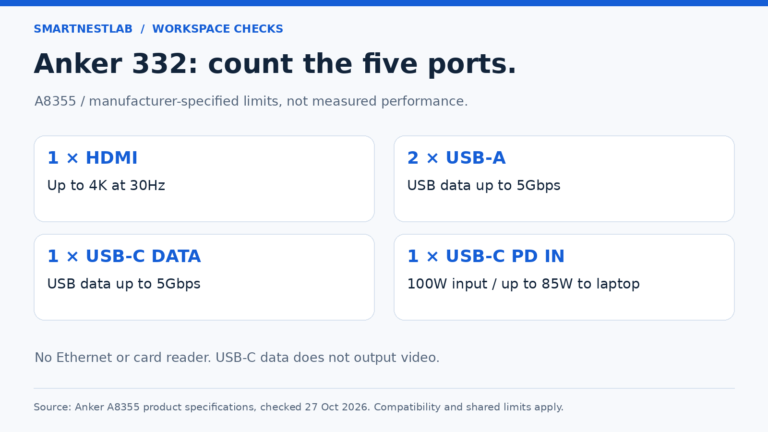
For example, Anker specifies 4K at 30Hz for A8355. A8383 advertises up to 4K at 60Hz, subject to host compatibility. Neither headline guarantees your setup. Use our dual-monitor guide if one screen works but a second does not.
6. Rebuild a Minimal Supported Setup
Disconnect optional devices after ejecting storage. Reconnect the laptop, hub and one display according to the manual, using the specified power supply if required. Check manufacturer-approved graphics, dock and monitor updates. On a managed work laptop, ask IT before driver or firmware changes.
Once stable, add accessories individually and check sleep/wake behaviour. For a separate battery issue, use our USB-C hub charging checklist.
What Should You Do Next?
| Observed result | Record for the comparison | Next step |
|---|---|---|
| Direct connection also fails | Laptop and monitor models, selected input, cable and display mode | Investigate the monitor, cable and laptop before blaming the hub. |
| Only the hub path fails | Hub model, exact laptop port and any adapter or cable changed | Verify host video support and the hub’s documented requirements. |
| A lower documented mode works, but a higher one fails | Resolution, refresh rate and number of active screens for each result | Check every component’s simultaneous display limits. |
| Two external screens work but always show the same content | Operating system, exact host model and the hub’s extension/mirroring specification | Check whether independent external desktops are supported before replacing a working cable. |
| Video works initially but fails after sleep or wake | Whether the monitor remains listed, and whether reconnecting changes the result | Follow model-specific support and approved update instructions. |
If troubleshooting still fails, send support the exact laptop, hub and monitor models, cable details and test results. Use the replacement routes below only after identifying the requirement your current setup cannot meet.