USB-C Hub vs Docking Station for a Home Office
Choosing a USB-C hub vs docking station for a home office starts with one question: what do you need to connect when you sit down to work? A small hub may be enough for a keyboard, mouse, and one monitor. A docking station can be more convenient when several devices stay on your desk and you regularly connect or disconnect a laptop.
Neither product name guarantees compatibility. Before buying, match the exact accessory to your laptop’s port capabilities, display requirements, charging needs, and operating system. More sockets are useful only when the entire setup can support them.
Quick answer: choose a hub for a modest setup that needs to travel with you. Consider a dock for a permanent workstation with several connections. If your existing laptop and monitor already provide the ports you need, you may not need either.
Compare options for your monitor setup
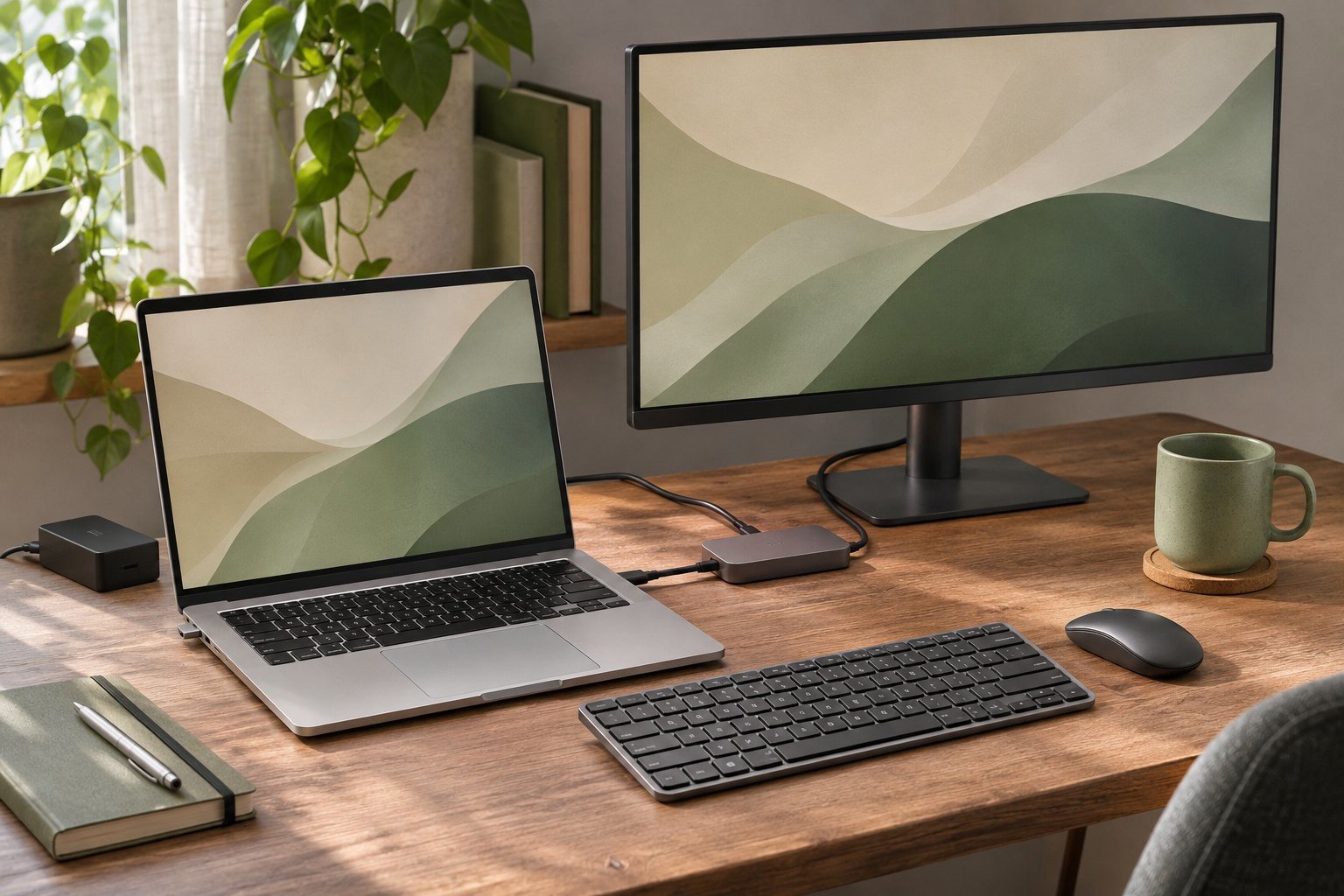
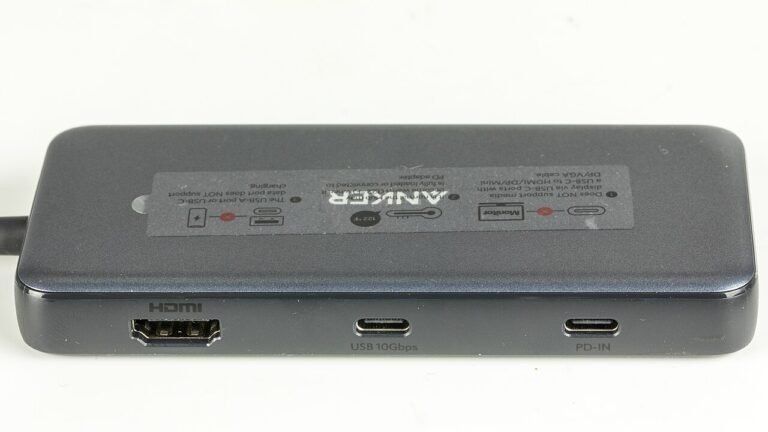
This is a research-based setup guide, not a hands-on product test. We consulted the official documentation linked below. Product photographs are credited to their photographer and illustrate the named example, not every hub or dock in this guide.
USB-C Hub vs Docking Station: The Practical Difference
A hub expands the connections available through one computer port. Many models are small enough to carry alongside a laptop. Some offer only USB data ports; others add video, Ethernet, card readers, or pass-through charging. A dock generally serves a more permanent workstation and may include its own power supply.
There is overlap between the categories. A compact accessory marketed as a dock can resemble a multiport hub, while a capable hub may handle everything a simple desk needs. Belkin’s hub, dock, and adapter guide describes these common uses. Treat the name as a starting point and compare the actual specifications.
| Question | A hub may suit you | A dock may suit you |
|---|---|---|
| Where do you work? | Several locations, with accessories carried in a bag | A desk where devices stay connected |
| How many connections? | A few essential ports | Several devices connected at once |
| How do you charge? | Separate laptop charger or supported pass-through charging | A supported dock supply that can charge the laptop |
| What matters in the layout? | Low weight and easy packing | Port placement and a convenient daily connection |
| What must still be checked? | Host support, displays, power, cable, and drivers | The same checks; a larger case changes none of them |
Our recommendation is to shop from a connection list. Write down the devices you use, then remove anything already served by a laptop port or your monitor. That often makes the choice clearer than comparing accessories by their advertised port count.
One HDMI Monitor: Choose by the Connection You Need
First check: your laptop’s intended USB-C port must support DisplayPort Alt Mode for these HDMI outputs. Check USB-C charging support separately if you want pass-through power. None of these four hubs adds a second external display or outputs video through its USB-C data port. If your existing connections already cover your devices, keep them.
Affiliate disclosure: As an Amazon Associate, SmartNestLab earns from qualifying purchases. The Amazon links below are affiliate links. Compare the exact model, seller, delivery and return terms before ordering.
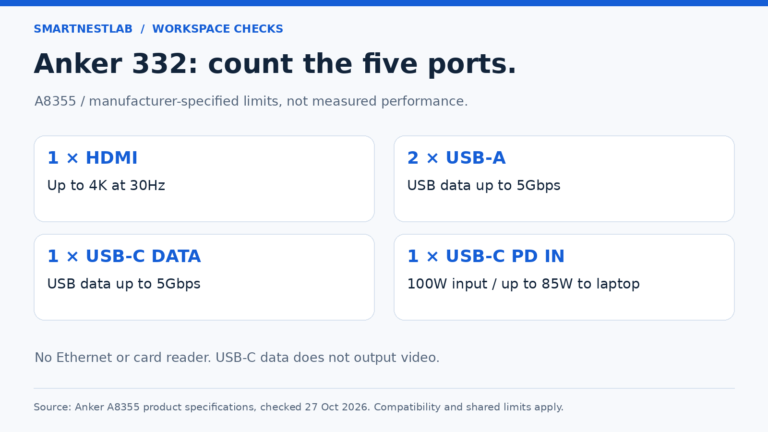
HDMI and a few USB accessories: Anker 332
Shortlist it if one HDMI display at up to 4K 30Hz is enough and you need two USB-A data ports and one USB-C data port, each rated up to 5Gbps. Skip it if you need 4K 60Hz, wired Ethernet, or card readers. PD charging is up to 100W input and 85W to the laptop; a suitable charger is separate.
Read the Anker 332 fit and compatibility guide or check Anker 332 A8355011 seller options on Amazon (ASIN B0BQLLB61B).
HDMI and memory cards, without Ethernet: Anker A83D2
HDMI plus Ethernet or faster USB data: Anker 555
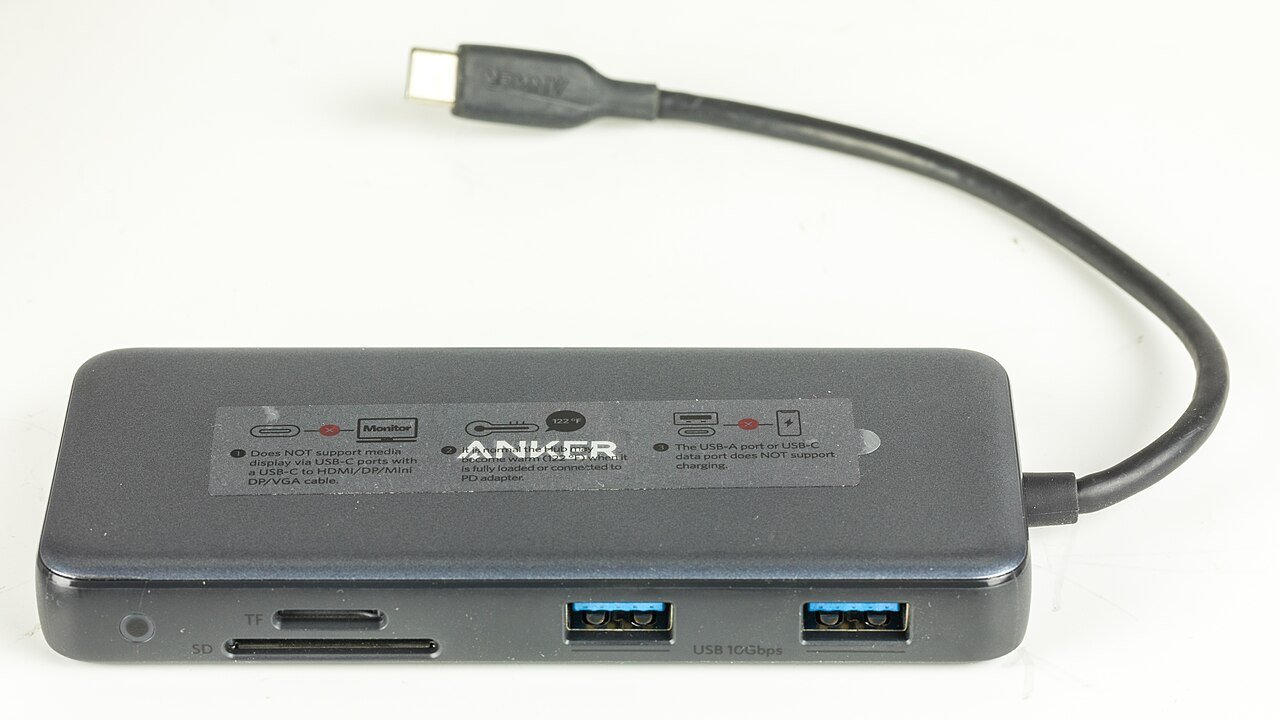
Shortlist it if you need Gigabit Ethernet, SD/microSD UHS-I readers, or up to 10Gbps USB data alongside one HDMI display. Its maximum 4K 60Hz requires a suitable DP 1.4 host; the documented DP 1.2 limit is 4K 30Hz. Skip it as a charging upgrade: its 100W PD input still delivers up to 85W to the laptop, the same ceiling as the 332. A charger is separate.
Read the Anker 555 fit and compatibility guide or check Anker 555 A83830A1 seller options on Amazon (ASIN B087QZVQJX).
A verified need for more host power or UHS-II cards: Plugable USBC-9IN1E
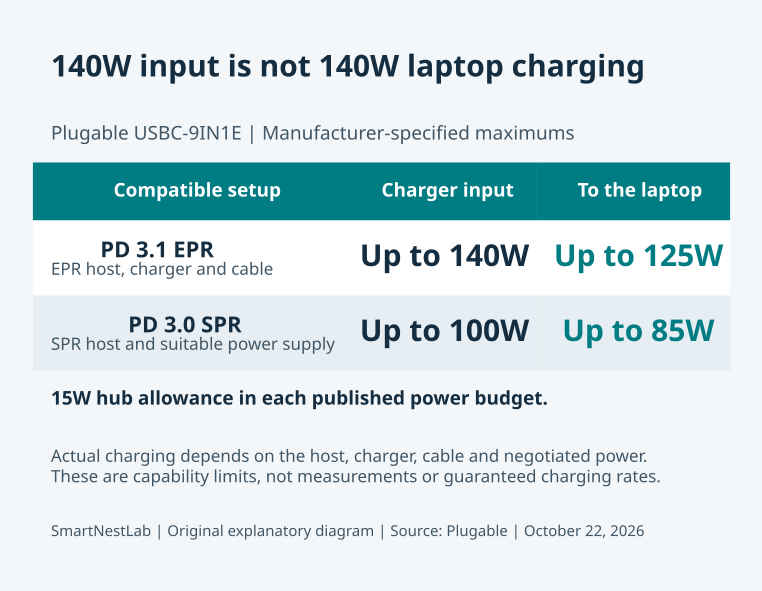
Shortlist it if your laptop, charger and cable explicitly support the PD 3.1 EPR setup needed for up to 140W input and 125W to the host, or you need its UHS-II readers and additional USB 2.0 port. It also has Gigabit Ethernet and up to 10Gbps data ports. HDMI is up to 4K 60Hz with DP 1.4, or 4K 30Hz with DP 1.2. Skip it as a power-only upgrade on a PD 3.0 SPR host: the documented ceiling is still 100W input and 85W to the laptop. Budget for a suitable separate charger and cable.
Read the USBC-9IN1E charging and desk-fit guide or check Plugable USBC-9IN1E seller options on Amazon (ASIN B0D9R5SNG1).
Before paying: record your exact laptop model and operating system, the intended USB-C port, monitor resolution/refresh rate, and charger/cable specifications. Measure the route from a raised laptop to a supported resting place for the hub; these models have fixed host leads. If any required capability is undocumented, ask the manufacturer rather than ordering on the port count alone.
Manufacturer specifications rechecked October 27, 2026: Anker A8355, Anker A8383, and Plugable USBC-9IN1E. These are published capability limits, not measured simultaneous performance. No fixed Amazon price, stock status or rating is quoted.
More USB-C Data Ports, With the Monitor Connected Separately
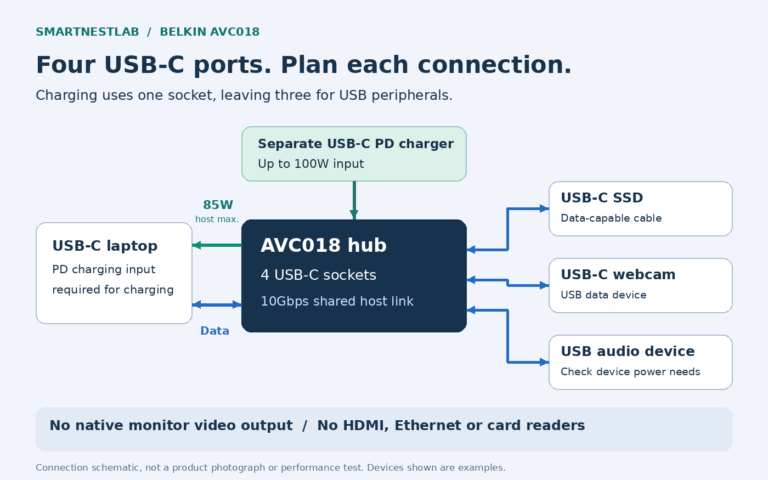
If the missing connections are USB-C SSDs, webcams or audio devices rather than another display, consider a USB-C data hub. The Belkin AVC018btBK has four USB-C sockets, a shared host connection up to 10Gbps, and up to 85W laptop charging from a suitable separate PD supply. Using one socket for the charger leaves three for peripherals.
It has no native monitor video output, USB-A, Ethernet or card readers. Keep the display connected through a separate supported laptop connection. Read our Belkin AVC018 port-count, charging and video-limit guide before treating four USB-C sockets as a replacement for a multiport HDMI hub.
A Different Requirement: Two Extended HDMI Screens
The Plugable USBC-11IN1E (ASIN B0BQ1CQ3YR) is a conditional option for a Windows or Chromebook desk needing two extended HDMI screens. Dual 4K 60Hz requires host DisplayPort 1.4 with DSC and MST, plus compatible displays and HDMI cables. On a Mac, the two HDMI screens mirror each other; this is not a solution for two independent external Mac desktops.
It adds Gigabit Ethernet, USB data at up to 5Gbps, card readers and audio. Its 100W PD input does not mean 100W laptop output: Plugable specifies up to approximately 92W to the host, with power reserved for operation. A charger is not included. The body is 22.2 × 4.5 × 1.5cm, with a fixed 44cm host cable.
Checked October 23, 2026 against Plugable’s specifications and the matching Amazon listing. This is a documentation-based example, not a hands-on recommendation for every laptop. Check the exact host before ordering.
Affiliate disclosure: As an Amazon Associate, SmartNestLab earns from qualifying purchases. Check USBC-11IN1E seller options on Amazon. Confirm current price, delivery and return terms; no fixed offer is quoted.
Two Independent HDMI Screens on a Mac: A DisplayLink Option
First check Apple’s model-specific display guidance. If native connections already support your screens at the required modes, extra USB graphics may be unnecessary.
Otherwise, the Plugable USBC-6950M (ASIN B0CS8D3KF2) is a conditional office-work option: DisplayLink adds two independent HDMI displays, each up to 4K 60Hz. On macOS 11+, it requires DisplayLink Manager and Screen Recording permission. Check software approval on a managed work Mac before buying.
This is a video adapter, not a charging dock: it adds no laptop power, USB peripheral ports, or Ethernet. Connect directly to the computer and use HDMI-input monitors with HDMI-to-HDMI cables. The body is approximately 8 × 6 × 1.5cm with a fixed 22cm lead.
Skip it for latency-sensitive gaming or HDCP-protected playback. Plugable warns that DisplayLink’s macOS permission can affect protected playback system-wide, including other screens. That tradeoff matters if the same Mac also streams films.
Model and listing checked October 26, 2026 against Plugable’s documentation and Amazon; not a hands-on test. Check USBC-6950M seller options on Amazon (affiliate link). No fixed price, stock, or rating is quoted.
Start With Your Laptop, Not the Accessory
USB-C describes a connector; it does not promise one fixed set of capabilities. USB-IF explicitly distinguishes USB Type-C from USB4, USB 3.2, and USB Power Delivery in its official terminology guidance. A matching plug therefore does not prove that a laptop can charge, send video, and transfer data at the accessory’s advertised limits.
Find your exact laptop model and open its manufacturer manual or specifications. Look for the description of the particular port you intend to use, especially if the laptop has several USB-C ports. Confirm video support, supported data connection, and whether that port accepts charging.
For conventional USB-C video accessories, DisplayPort Alternate Mode is an important capability to check. Dell’s docking station guide explains the distinction between video-capable USB-C, Thunderbolt, and universal docks. A driver-based USB graphics dock is a different approach and should be evaluated separately.
Port symbols can provide a clue, but the manual is the better place to resolve uncertainty. If the specification is vague, ask the laptop manufacturer whether the exact accessory and display setup are supported before placing an order.
When a USB-C Hub Is Enough
A hub is a sensible starting point when your main problem is a small shortage of connections. Perhaps your keyboard receiver needs USB-A, a monitor uses HDMI, and a camera needs an SD reader. If a compact hub explicitly supports those tasks with your laptop, a larger dock may add little practical value.
For a laptop that moves between home and the office, think about what actually travels. A portable hub can stay in your bag while a separate charger remains at each desk. That arrangement may be simpler than moving a dock, its power supply, and its cables every day.
Check the attached host cable’s length and position. A hub hanging from a laptop raised on a stand may pull on its connector or obstruct another port. Place the accessory on a stable surface and leave slack rather than using the cable as a support. Our ergonomic laptop setup guide explains how a riser and separate input devices fit into the wider desk arrangement.
When a Docking Station Makes More Sense
Consider a dock when several connections remain at the desk: monitors, a webcam, a keyboard, a wired network connection, and storage. The benefit is a repeatable routine. You connect the laptop without rebuilding the workstation’s cabling each time.
Evaluate convenience in your actual layout. Rear-facing connections may suit devices that remain attached; an accessible front port may help with occasional storage. A detachable host cable can also be useful when the laptop sits farther away, provided any replacement meets the accessory’s requirements.
A one-cable routine is conditional. The dock must support the laptop’s charging needs and intended displays, and any required software must be available. Some laptops still need their original charger for demanding work. Choose a dock because it solves those specific needs, not because its larger case seems more professional.
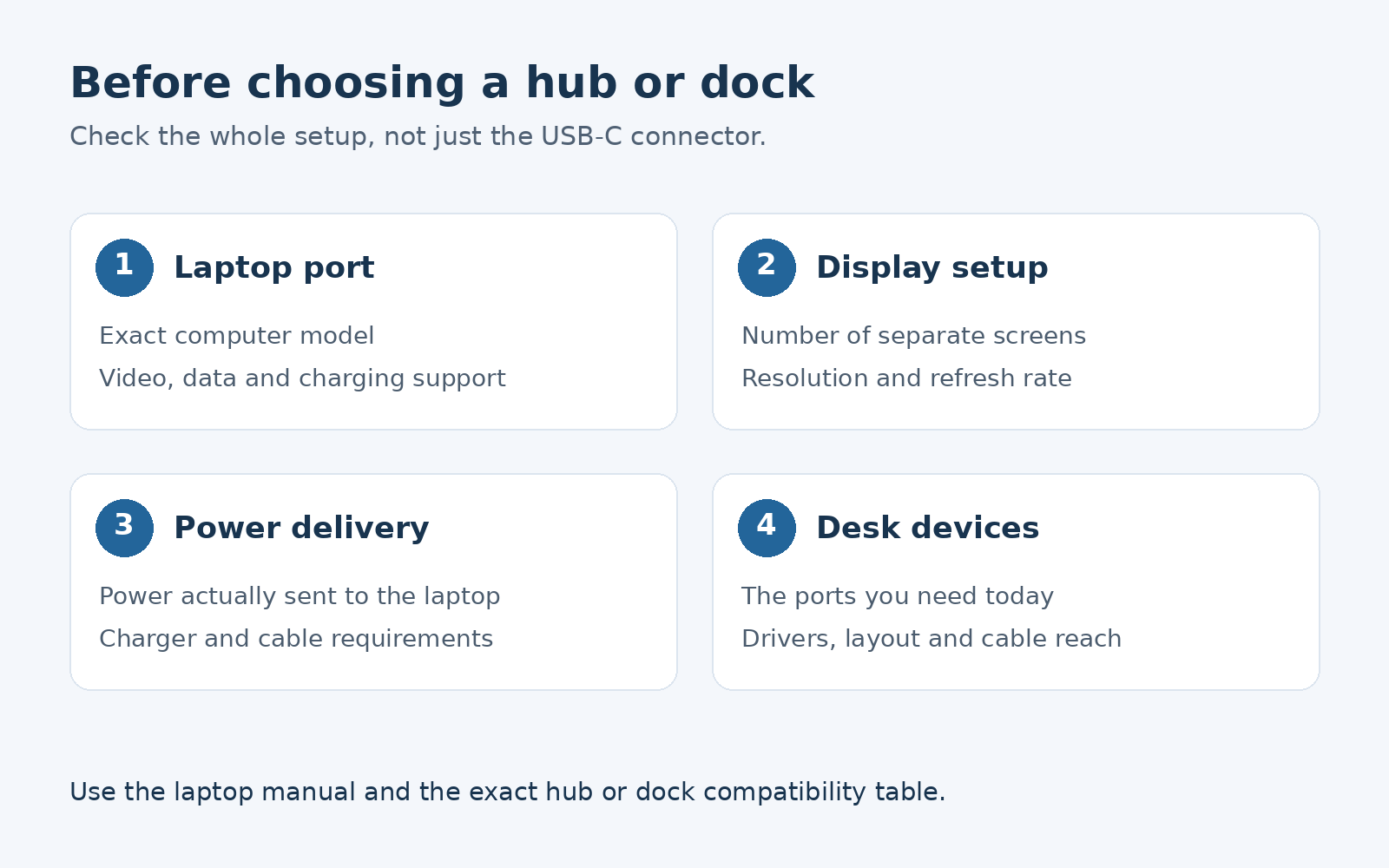
Four Compatibility Checks Before You Buy
1. Confirm the Actual Display Configuration
Write down the number of external screens, their resolutions, and the refresh rates you want to use simultaneously. Then find that configuration in the accessory’s compatibility table for your computer and operating system.
Two HDMI sockets do not automatically mean two independent extended desktops. Likewise, an advertised maximum resolution may apply to one screen rather than every output at once. Check the supported combination instead of combining separate headline claims yourself. Dell’s DisplayPort over USB-C guide provides background on the video connection; the exact device documentation remains essential.
For a Mac, begin with Apple’s external display guidance. The supported number of screens depends on the specific Mac model and display configuration. Do not assume a compatibility statement for one MacBook also applies to another, or that closing the lid changes every model’s limit.
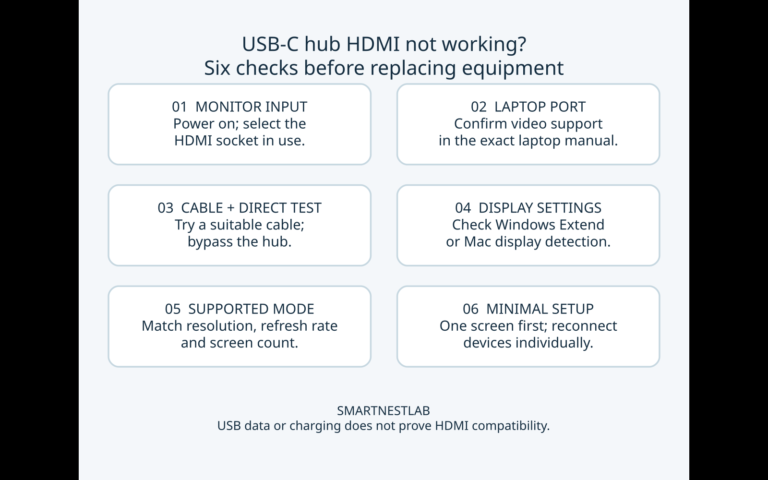
If the HDMI monitor shows no picture, follow our USB-C hub HDMI troubleshooting checklist before replacing equipment. Once the connections work, arrange the screens around your normal tasks. Our monitor distance guide can help you position the screen without pulling the laptop and its cables into an awkward place.
2. Check Power Delivered to the Laptop
Separate three numbers: the power supply’s rating, the accessory’s accepted input, and the power it can deliver to the host laptop. They are not necessarily the same. Use the stated host charging output rather than assuming the number printed on the power brick reaches your computer.
For example, imagine a laptop manufacturer recommends a 65W charger while a hub accepts a 100W input. That is not enough information to approve the setup: you still need the hub’s host output specification, a suitable charger and cable, and confirmation that the laptop accepts charging through that port. These numbers are an example, not a rule for every laptop.
Read whether the power supply is included. A pass-through hub may require you to provide a compatible charger. Count that requirement when comparing the complete setup, and keep the original laptop charger available if the manufacturer calls for it. If you already own a hub that is not charging the laptop, use our six USB-C hub charging checks before shopping for a replacement.
3. Match the Host Connection and Cable
Thunderbolt and USB-C use the same connector shape, but the accessory’s requirements still matter. Intel’s Thunderbolt overview describes the technology and its certification requirements. Check the dock’s supported host modes rather than assuming every Thunderbolt dock works fully on a basic USB-C connection.
Use the supplied or manufacturer-approved host cable. Charging capability and data capability are separate properties. USB-IF’s cable guidance distinguishes power and data-rate markings. A cable that charges a laptop is not, by that fact alone, suitable for a high-speed dock or its video connection.
Plan cable reach before buying. Measure the route around the laptop stand and monitor base, not just the straight-line distance. A connection that fits without tension is more practical than a specification advantage you cannot use in your desk layout.
4. Check Software and Work-Laptop Restrictions
Some universal docks use DisplayLink USB graphics, which requires software support. That is different from simply passing a native display signal through an adapter. The official DisplayLink macOS guide explains installation and required permissions, including access to the screen pixels used to render the external display.
If you use a company-managed laptop, ask IT whether the specific dock and required software are permitted. A product that works with a personal laptop may not suit a machine where you cannot install drivers. Confirm current operating-system support and any application limitations before relying on a driver-based solution.
A Worked Connection Plan: One Monitor, Five Connections
Instead of shopping for “8-in-1,” write the connections you need. This invented desk needs one HDMI monitor at 4K/60Hz, a USB-A keyboard receiver, a USB-C SSD, Ethernet and an SD reader. It is a planning example, not a setup we tested.
Map the sockets before comparing the price
| Required by this example | Anker 332 A8355 | Anker 555 A8383 |
|---|---|---|
| One HDMI screen at 4K/60Hz | No: published 4K/30Hz maximum | Conditional: up to 4K/60Hz with a suitable host and connection |
| USB-A receiver + USB-C SSD | Has those data sockets | Has those data sockets |
| Ethernet + SD reader | Neither is provided | Both are provided |
| Decision for this example | Does not meet the stated connection list | A candidate for further compatibility checks, not an approved pairing |
Change the requirements and the answer changes. Remove Ethernet and SD and accept 4K/30Hz, and the 332 may cover the remaining connection list. Require two external screens through this hub, USB-C monitor output or more than 85W laptop pass-through power, and neither of these models meets that requirement. Check the documented configuration rather than adding more adapters by default.
Sharing one accessory between work and home laptops? Repeat the port, display, power and software checks for each computer. Then use our home office cable management guide to plan a supported cable route without crowding your mouse or foot area.
A Short Buying Checklist
Before ordering, make one note with these details. Missing answers are a reason to ask the manufacturer, not a reason to assume compatibility.
- Laptop: exact model, operating system, and intended host port.
- Screens: separate extended displays or mirroring, with simultaneous resolution and refresh-rate requirements.
- Power: supported host charging output, included supply, and any original-charger requirement.
- Devices: ports needed for the keyboard, mouse, webcam, network, and storage.
- Cable: specified capabilities, included length, and an unobstructed route.
- Software: required drivers, current support, and workplace approval.
- Purchase terms: exact model number, complete package contents, and seller return policy.
Once the accessory arrives, check each required function before adding permanent cable ties: charging, every screen in the intended mode, input devices, webcam, network, and storage. Include a normal sleep-and-wake cycle in your initial setup check. If something fails, consult the product’s troubleshooting instructions while the return window is still open.
Finish by checking the physical workspace. Keep input devices within comfortable reach using our keyboard and mouse placement guide, and use our desk accessories guide when cable organization is the remaining problem.
Frequently Asked Questions
Can a USB-C Hub Replace a Docking Station?
Yes, when it supports every connection you need with your exact laptop. The deciding factors are compatible displays, charging, devices, software, and desk layout. A larger dock is useful when its features improve your routine.
Will Any USB-C Dock Charge My Laptop?
No. Check that the laptop accepts charging through the intended port, that the dock delivers suitable host power, and that the correct power supply and cable are included or available. A connector that fits is not enough.
Does a Dock Automatically Add More Monitors to a Mac?
No. Native display support depends on the exact Mac and configuration. Driver-based USB graphics is a separate option with software requirements. Read both Apple’s model-specific guidance and the dock manufacturer’s compatibility information.
Do I Need a Thunderbolt Dock for Everyday Office Work?
Not necessarily. Start with your required displays and devices. If a simpler compatible hub or USB-C dock meets those needs, choose based on the complete setup and convenience. Consider Thunderbolt when its documented capabilities address a requirement you actually have.
Which Should You Choose?
In the USB-C hub vs docking station decision, start with a hub when a few compatible connections meet your needs. Consider a dock when its documented display support, power supply, and desk layout make your daily connection easier. Use the comparison above to shortlist a compact hub, then complete all four compatibility checks before ordering.
Choose the least complicated option that meets your verified requirements. The best result is a laptop that connects reliably, keeps the necessary devices available, and lets you arrange the desk around your work instead of around missing ports.