USB-C Hub Ethernet Keeps Disconnecting but HDMI Works? 3 Checks
If your USB-C hub keeps dropping Ethernet while HDMI stays on, watch the Ethernet adapter in Windows as the problem happens. An adapter that disappears, a connection that says “Network cable unplugged,” and a connection that stays active but loses internet access each call for a different test.
Start with what changes during the dropout
| What you see | What to test next |
|---|---|
| The Ethernet adapter disappears | Test the hub with Ethernet and its required power only. Reconnect the monitor and USB accessories one at a time to see whether the dropout returns. |
| The adapter stays listed but says the cable is unplugged | Try a known-good Ethernet cable with the same router port. If it still drops, try another port with that same cable. |
| Ethernet stays connected but websites stop loading | Check whether another device on the same network can reach the internet during the dropout. Run Windows network troubleshooting before replacing the hub. |
Compare the same cable with and without the hub
If your laptop has Ethernet, connect the same cable directly to it and leave the router port unchanged. If the direct connection also drops, continue checking the cable, router and network. If the direct connection is stable, the hub path warrants a closer look, including the laptop’s USB-C port, the hub’s host cable if detachable, and its Ethernet adapter. If your laptop has no Ethernet jack, another wired device can help check the cable and router port, but it cannot reproduce your laptop’s USB-C connection.
Replacing the hub after these checks?
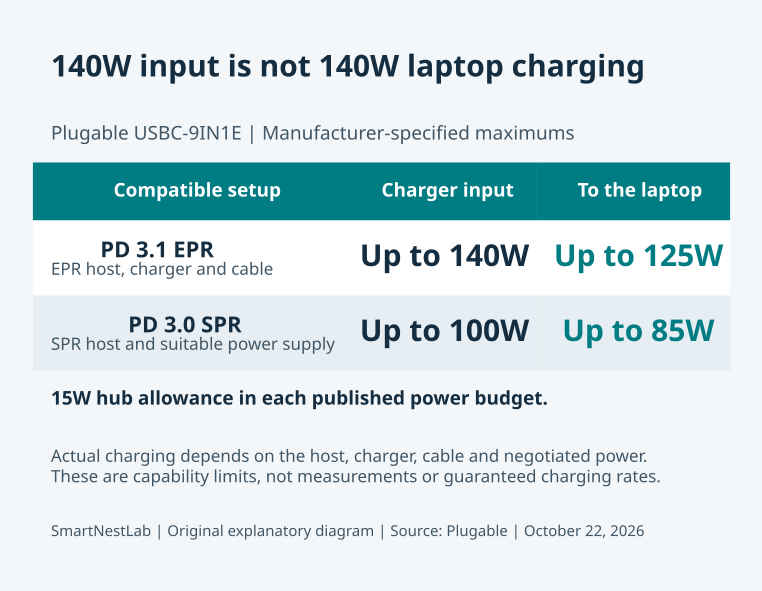
- Hubs with wired Ethernet covered on SmartNestLab: Anker 555 on Amazon · our Anker 555 guide, and Plugable USBC-9IN1E on Amazon · our Plugable guide
- Need several displays and steady networking? USB-C hub vs docking station
Research-based picks, not hands-on tests. As an Amazon Associate, SmartNestLab earns from qualifying purchases.
Worked example: Ethernet drops after waking the laptop
Suppose HDMI comes back after sleep, but the Ethernet adapter disappears until you reconnect the hub. Record that result, then repeat the same sleep-and-wake test with the hub, Ethernet cable and any required power connected, leaving the monitor disconnected. If it still happens, check the exact hub model’s support page for Windows driver or firmware guidance. If it happens only after you reconnect the monitor, tell support which port, cable and display mode reproduce it. Neither result alone establishes that the hub hardware is faulty.
Before shopping, write down your laptop and hub models, Windows version, the adapter status during the dropout and the result of the direct test. If you still need a replacement, use the single-monitor hub comparison to check Ethernet, display mode and charging together.
Sources: Microsoft’s Ethernet troubleshooting guide, Anker’s hub Ethernet troubleshooting and Plugable’s dock support example. The sleep-and-wake example is illustrative.