USB-C to DisplayPort vs. HDMI for One 4K Monitor
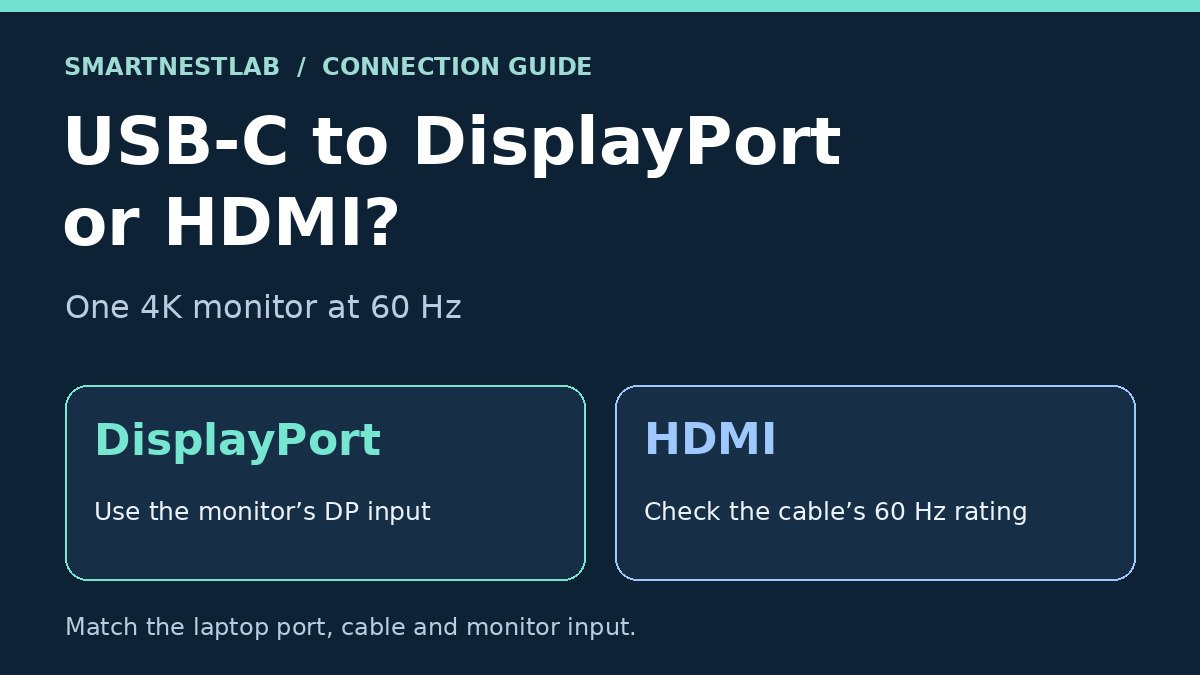
For one 4K monitor at 60 Hz, start with the input on the monitor. If it has a DisplayPort input that supports that mode, a USB-C to DisplayPort cable is the simplest place to start. If the monitor has HDMI only, choose a USB-C to HDMI cable explicitly rated for 3840 × 2160 at 60 Hz. Both routes require video output from the exact USB-C port you use.
Laptop USB-C → USB-C to DisplayPort cable → monitor DisplayPort input
Laptop USB-C → USB-C to HDMI cable → monitor HDMI input
Check the full 4K 60 Hz chain
1. Laptop. Find your model’s port diagram and look for DisplayPort Alt Mode or an explicit external-display specification. The USB-C plug shape and a charging or data label alone tell you little about video support. A data-only port needs a different display solution. See VESA’s explanation of DisplayPort over USB-C.
2. Cable. Check the exact SKU, the direction of the connection and the published maximum. “4K” alone can describe a 30 Hz product. For this setup, the cable must take video from the USB-C host to the monitor input.
3. Monitor. In the monitor manual, check the maximum resolution and refresh rate for the input you will actually use. Select that input on the monitor. In Windows 11, select the external display under Settings → System → Display → Advanced display and confirm both 3840 × 2160 and 60 Hz.
Can a USB-C to HDMI cable work in reverse?
Check which device sends the picture, then look for the cable’s listed video input and output. For example, the StarTech CDP2HDMM1MH below lists USB-C as its input and HDMI as its output. That cable fits a USB-C laptop sending video to an HDMI monitor. If you have an HDMI-output computer and a USB-C-input monitor, look for an adapter explicitly rated for that direction and confirm its power requirements and supported resolution and refresh rate.
Two documented cable examples
DisplayPort input: StarTech CDP2DPMM1MB is a one-meter USB-C to DisplayPort 1.2 cable with a published 3840 × 2160 at 60 Hz ceiling. Use it from a supported USB-C video output to the monitor’s DisplayPort input.
HDMI input: StarTech CDP2HDMM1MH is a one-meter USB-C to HDMI 2.0b cable rated up to 3840 × 2160 at 60 Hz. Its data sheet specifies DP 1.4 Alt Mode/HBR3 for full functionality. Check the exact laptop port against that requirement before ordering.
These are examples from manufacturer documents. Check that the exact cable is long enough for your desk and that both ends support the display mode you want.
Worked example: the screen works, but Windows only offers 30 Hz
Suppose your laptop’s USB-C port supports 4K at 60 Hz, your HDMI input supports that mode, and the picture comes through a hub whose HDMI specification tops out at 4K at 30 Hz. The hub is the first documented limit. A cable rated for a higher refresh rate cannot raise that hub’s output ceiling.
- If you already have a compatible direct cable: bypass the hub, keep the same monitor input if possible, and check the external display again in Windows Advanced display. If 60 Hz becomes available, you have a working route without the hub.
- If direct connection also stops at 30 Hz: write down the laptop model and port, the cable SKU, and the monitor model and input. Check those three published limits before buying a replacement. If you’re connecting directly to a Dell U2720Q by USB-C, check the monitor’s USB-C Prioritization setting before swapping the cable.
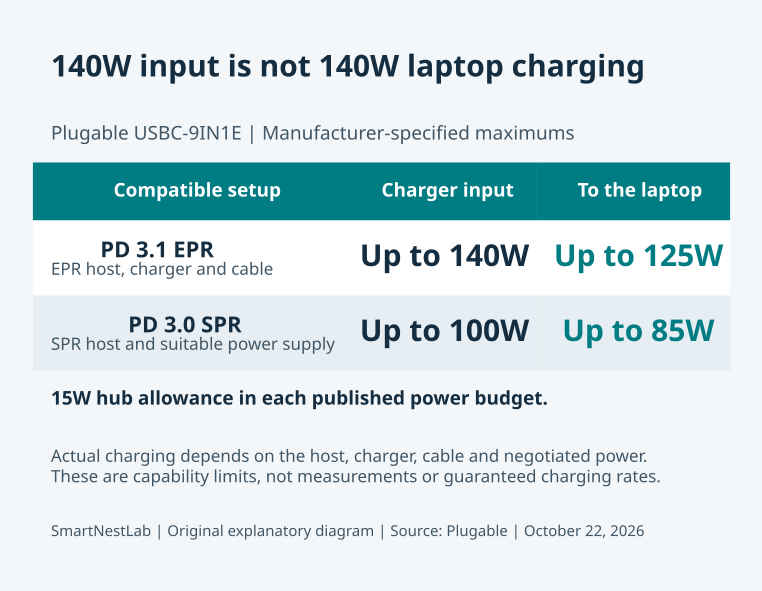
- If you need charging and peripherals on the same laptop port: compare hubs only after checking that the exact host and hub combination supports 4K at 60 Hz and the charging power you need.
Hubs that list 4K at 60 Hz over HDMI
- Anker 555 on Amazon — up to 4K 60 Hz with a suitable DP 1.4 host · our guide
- Plugable USBC-9IN1E on Amazon — one display, 4K 60 Hz with DP 1.4 (4K 30 Hz with DP 1.2) · our guide
Research-based picks, not hands-on tests. As an Amazon Associate, SmartNestLab earns from qualifying purchases.
When a hub is worth buying
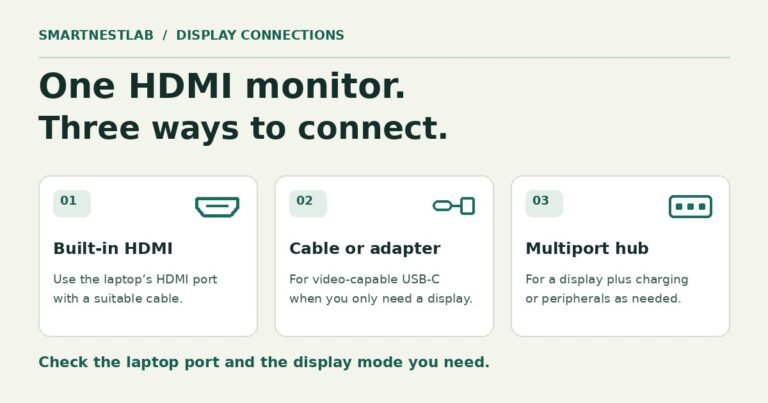
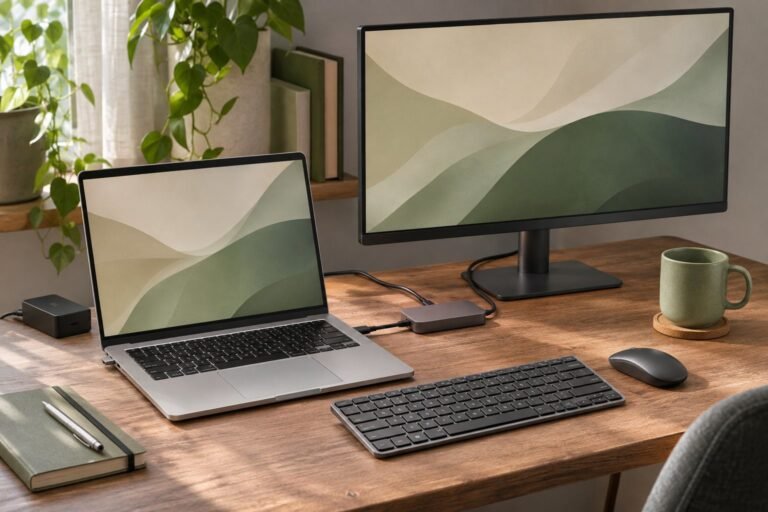
If the cable is only for the screen, charge the laptop separately. If you want the same laptop connection to carry video, charging and USB accessories, compare the adapter and hub options for one monitor. Check the hub’s video mode and its charging output to the laptop separately.
For a 4K 60 Hz HDMI hub, compare the Anker 332 and 555. The 332 is rated for up to 4K at 30 Hz. The 555 can reach 4K at 60 Hz with a compatible setup. If an HDMI screen already stays blank, start with the USB-C to HDMI troubleshooting checks before buying a replacement.