Dual Monitor Setup for a Home Office: 7 Practical Steps
A useful dual monitor setup starts with deciding which screen carries your work. Two displays can give a spreadsheet and its reference document separate homes, but a balanced-looking arrangement may still put your main application off to one side. Plan around the tasks you perform, then adjust the hardware and software together.
Quick answer: center the screen you use most. If you use both about equally, place them close together in a shallow arc in front of your chair. Then check height, readable text, input-device placement, desk clearance, and the way the pointer moves between screens.
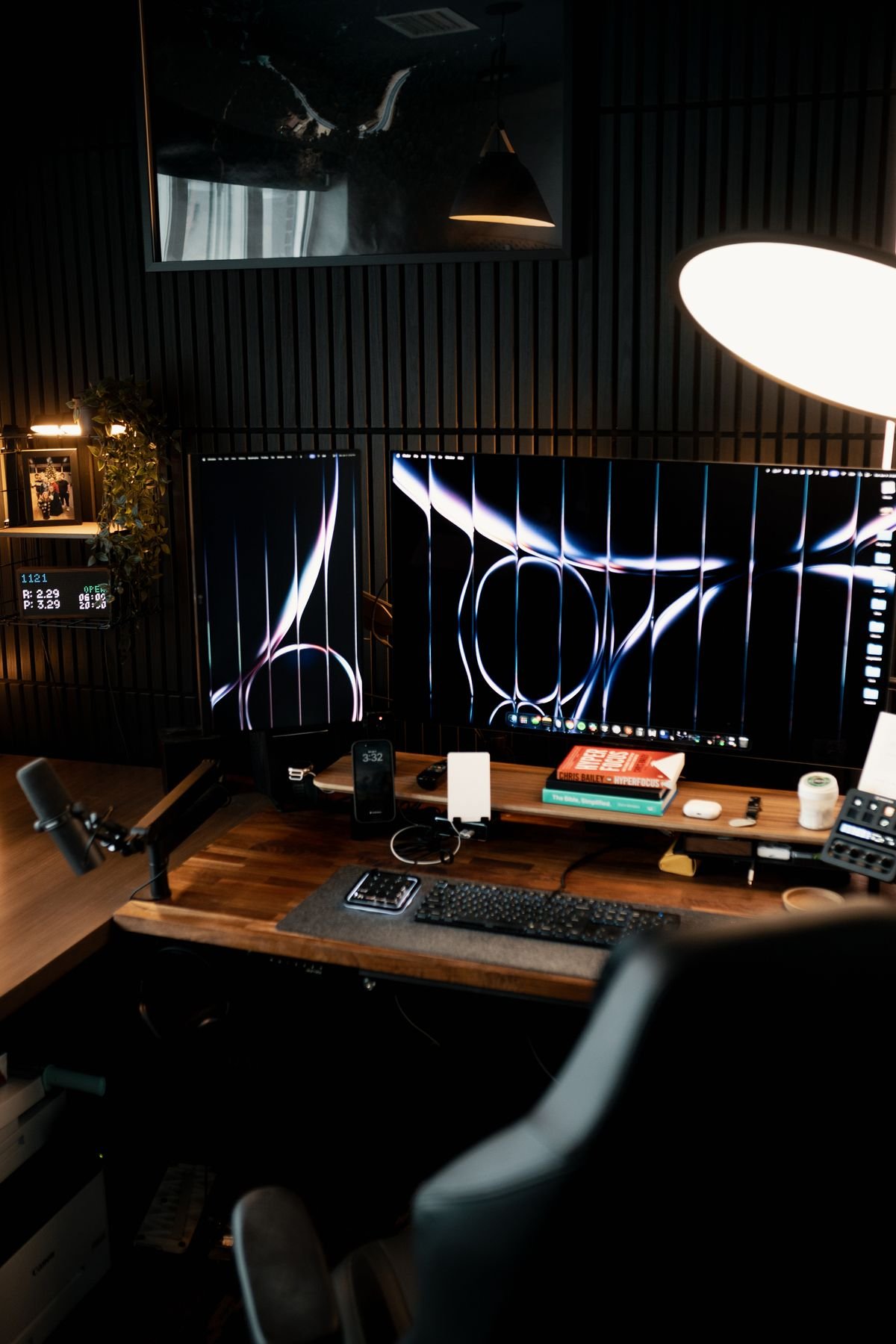
This is a research-based setup guide. The examples and checks below are our practical applications of the linked workplace and software guidance, not a hands-on monitor test. Workspace photographs illustrate layout choices; they do not show products we have tested.
Choose a Dual Monitor Setup by How You Work
| Your work pattern | Layout to try | What to check |
|---|---|---|
| One main application, with occasional references | Main screen centered; reference screen beside it | The active work does not migrate to the side all day |
| Two applications used about equally | Screens close together in a shallow arc | Both remain easy to read from the normal chair position |
| A laptop plus an external display | External display centered when it carries most work | Separate input devices and readable laptop text |
| Different screen sizes or a portrait display | Place by the actual reading area | Screen height, scaling, and access to the top of long documents |
Before moving anything, open the documents and applications used in a typical work session. Note where you type, where you read for long stretches, and which window you only glance at. “Primary” should describe your actual work pattern, even if the operating system labels another display as the main one.
1. Give Each Screen a Job
For a report-writing session, the document might stay on the main screen while a reference PDF stays on the second. For spreadsheet reconciliation, both windows may need similar attention. For a video call, the call window may temporarily become the main task. Choose a layout for the work you do most often, then allow occasional exceptions.
The OSHA workstation evaluation checklist distinguishes a primary display placed in front of the user from equally used screens positioned together within a comfortable viewing angle. This supports using attention, rather than the desk’s visual symmetry, as the starting point.
Try a simple window rule: keep the application receiving most of your typing in the central work area. If your reference screen becomes the place where you spend the whole morning editing, move that application or reconsider which display is primary. A one-time desk arrangement does not assign permanent jobs to your windows.
2. Set the Layout Before Fine-Tuning the Height
When One Screen Does Most of the Work
Keep the main screen in front of the normal chair position, with the other beside it and angled toward you. The CCOHS monitor-positioning guide describes this arrangement for unequal use. Place a reference page on the secondary screen and test whether its ordinary text is readable from where you sit.
When Both Screens Get Similar Attention
CCOHS recommends placing equally used screens together, angled in a semicircle. A shallow arc is a practical starting arrangement: bring the inner edges close and try sitting near their meeting point. Fine-tune using your actual windows rather than treating the seam as a precise measurement you must follow.
Our suggested test is to move one familiar document between screens. If you immediately shift the chair, drag the document back, or enlarge it dramatically to keep working, investigate that difference before declaring the layout finished. The issue could be position, scaling, lighting, or the window arrangement.
3. Check Height and Readability on Both Displays
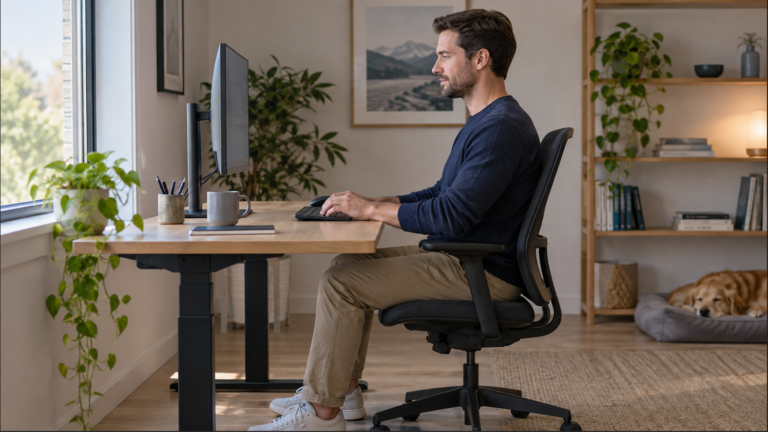
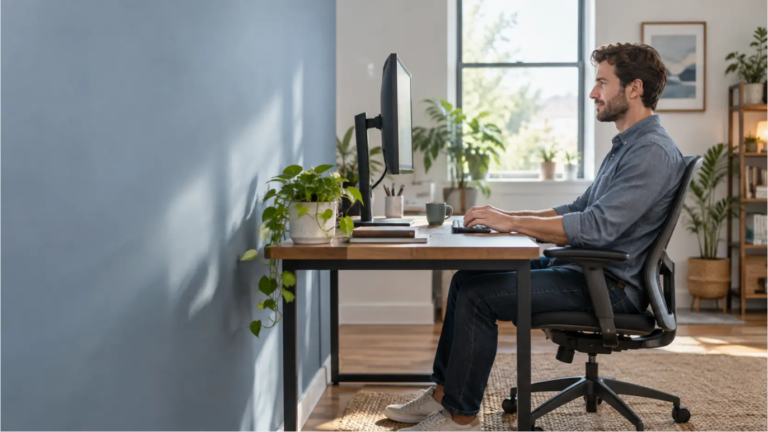
OSHA’s monitor guidance places the top of the screen at or slightly below eye level and emphasizes reading with the head and torso upright and the back supported. Check each display from your working position; do not assume that matching stand settings creates matching screen heights.
For the detailed adjustments, use our guides to monitor height and monitor viewing distance. Set those variables with normal documents open. Wallpaper is a poor test of whether an application’s menus and small text are readable.
With different screen sizes, compare the places you actually read instead of aligning only the outer cases. A portrait screen needs its own height check. CCOHS specifically cautions against placing the top of a tall or portrait display above eye level. Keep a long reference page’s important content in a usable area, and scroll instead of preserving every line on screen.
There is no need to force two displays to use the same percentage of scaling. The useful comparison is whether ordinary text and controls on each are readable at your chosen position. Open the same email or document on both as a practical check.
4. Keep the Keyboard and Mouse in the Working Area
A larger screen arrangement should not push the input devices toward the edge of the desk. OSHA’s checklist calls for the pointing device beside the keyboard, at the same level and usable without reaching. Recheck these positions after moving monitor stands or adding a dock.
Our keyboard and mouse placement guide covers this part of the workstation. For a dual-screen session, test the arrangement while typing in the window you use most, not while facing an empty space between the monitors.
For a laptop-plus-monitor setup, decide which screen gets sustained attention. If it is the external display, make that your main work area and keep the laptop for occasional references. Separate input devices allow the laptop screen to move independently of its keyboard. Our ergonomic laptop setup guide explains that arrangement.
5. Match the Software Layout to the Physical Layout
Two displays can be physically well placed while the pointer still exits the wrong edge. In Windows 11, open Settings → System → Display, use Identify, and drag the display rectangles into the arrangement you want. Select Apply and test pointer movement across their shared edge. Microsoft documents this in its multiple-monitor guide.
For separate working areas, Windows key + P → Extend spreads the desktop across displays. Duplicate shows the same content on both. Choose according to the task; a mirrored presentation and a spreadsheet-plus-reference workspace have different needs.
On a Mac: open Apple menu → System Settings → Displays. Use Apple’s display settings guidance to arrange supported displays, choose their resolution and refresh rate, and configure separate working areas rather than mirroring. Move a window between screens and check pointer movement against their physical positions. Settings cannot turn an unsupported hardware connection into two independent outputs.
Select each screen individually before adjusting its settings. Microsoft’s resolution and layout guidance recommends the marked resolution and scaling options as typical starting choices. Adjust readable size with scaling or application zoom instead of lowering resolution just to enlarge text.
For a portrait display, the software orientation also needs to match the physical rotation. Follow the stand or mount instructions before rotating hardware. After applying the change, open a real document and check where its toolbar and page content land.
6. Check Desk Space, Connections, and Cable Movement
Make an inventory before buying another display: computer model, existing screens, available ports, current adapters, and the desk area the stands occupy. Then check the computer and connection equipment’s documentation for the configuration you want. Two video-looking sockets alone are not a complete compatibility check.
Windows or ChromeOS: If your laptop’s USB-C port supports DisplayPort Alt Mode and the setup supports MST, see the dual-HDMI setup for compatible Windows and Chromebook systems. The two HDMI outputs on the Plugable USBC-11IN1E mirror each other on a Mac.
Mac: Check how many external displays your exact Mac model supports natively. If you still need two independent external displays, see the DisplayLink option and its software, charging, and protected-video limitations. Record a working setup before changing it so placement changes are easier to separate from connection problems.
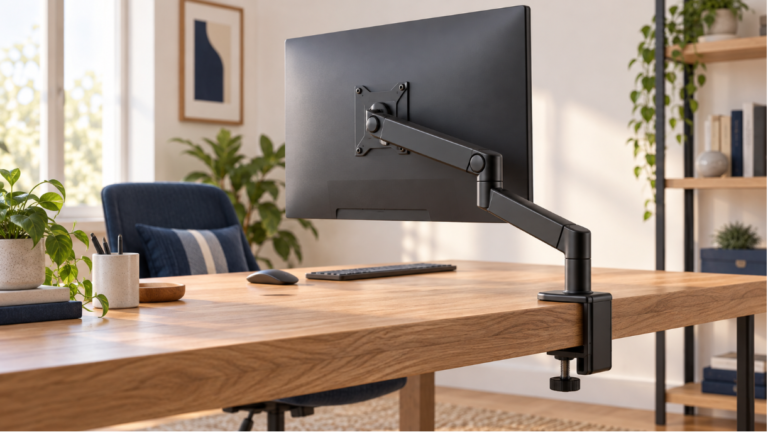
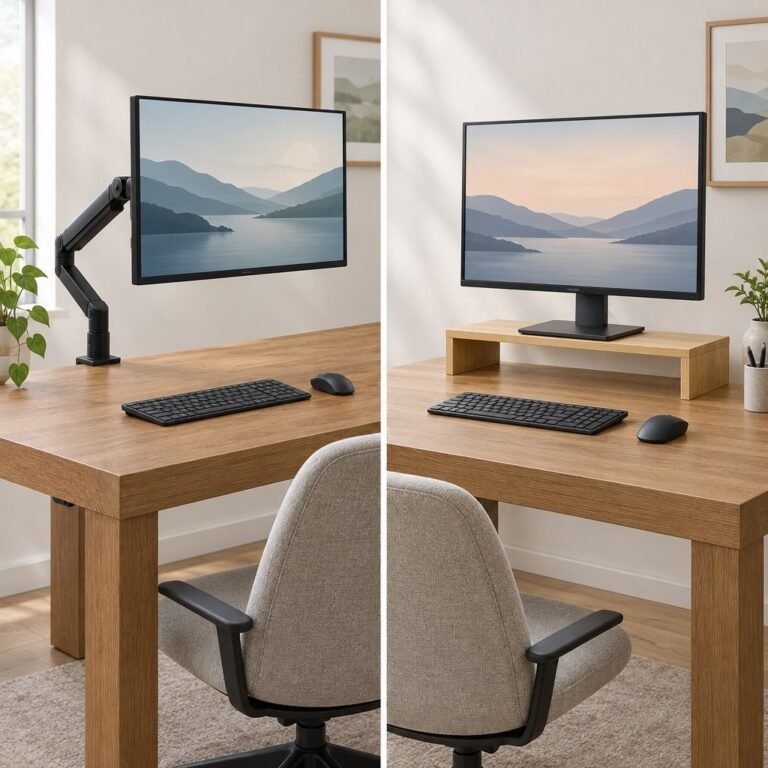
An adjustable arm is an option when the current stand cannot reach the position you need. Compare the exact display and desk requirements before choosing hardware. Our monitor arm buying guide covers the product checks and contains affiliate links. A stable existing stand may already give you the required adjustment.
Leave room for stand bases, mount hardware, and connected plugs. Check cables whenever a screen changes position and follow the equipment’s movement instructions. Once the arrangement is settled, use our home office cable management guide to plan the remaining route.
7. Test a Real Work Session and Keep Moving
Use a short, representative session to compare the arrangement. Read a reference page, type into the main application, move a window across, and join a call if that is part of your day. Note the one thing you keep correcting. Change that variable first, then repeat the task; changing everything at once makes the result harder to interpret.
Check reflections on each screen during the times you normally work. Two differently angled panels may reflect different parts of the room. Our monitor glare guide helps you investigate lighting before compensating with another screen position.
A second display does not replace breaks or changes of activity. The UK HSE’s work-routine guidance favors short, frequent breaks and changes that let users move or change posture. Build those opportunities into the workday rather than staying in one arrangement simply because it now looks tidy.
A Final Dual Monitor Setup Checklist
- Have I chosen a layout based on how much I use each screen?
- Can I read the main application and reference text from the normal chair position?
- Have I checked each display’s height, scaling, and reflections?
- Are the keyboard and mouse still easy to reach?
- Does the pointer cross between screens where I expect?
- Have I checked the exact computer, display, and connection requirements?
- Can the equipment move as intended without pulling its cables?
- Does my routine include movement and changes away from sustained screen work?
Frequently Asked Questions
Should I Sit Between Two Monitors?
That is a useful starting point when both get similar attention. When one carries most of your work, start with that screen in front of you. Let the task decide the arrangement, then test it with your normal applications.
Do Dual Monitors Have to Be the Same Size?
Matching hardware is not the only way to organize a workspace. Different displays need individual height and readability checks. Compare their usable work areas and adjust software settings separately before deciding whether a hardware change is necessary.
Can a Laptop and an External Monitor Work as Two Screens?
Yes, when the computer supports that configuration. Decide which display carries the main task, use suitable separate input devices for a sustained desk setup, and check the laptop’s exact display and connection capabilities.
Do I Need a Dual Monitor Arm?
Only if it solves an adjustment or space problem in your particular setup. Test the existing stands first. If choosing a mount, verify the exact screens, mounting requirements, desk compatibility, and available movement.
Sources and Further Reading
Sources checked October 6, 2026: OSHA workstation evaluation checklist; OSHA monitor guidance; CCOHS monitor positioning; Microsoft multiple monitors; Microsoft resolution and layout; HSE work routine and breaks.