How Far Should Your Monitor Be From Your Eyes?
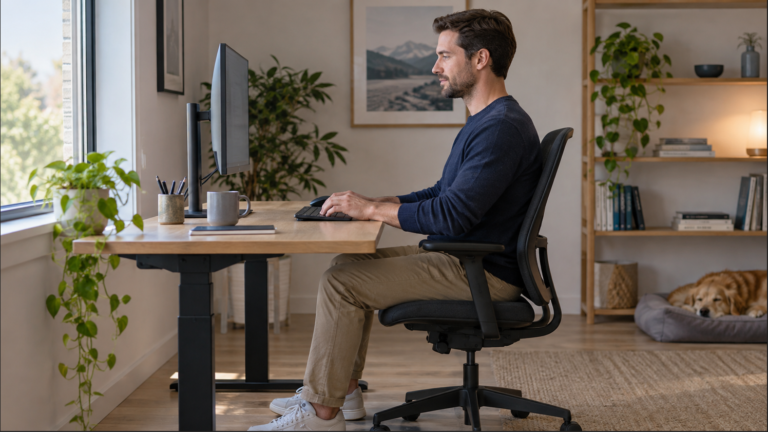
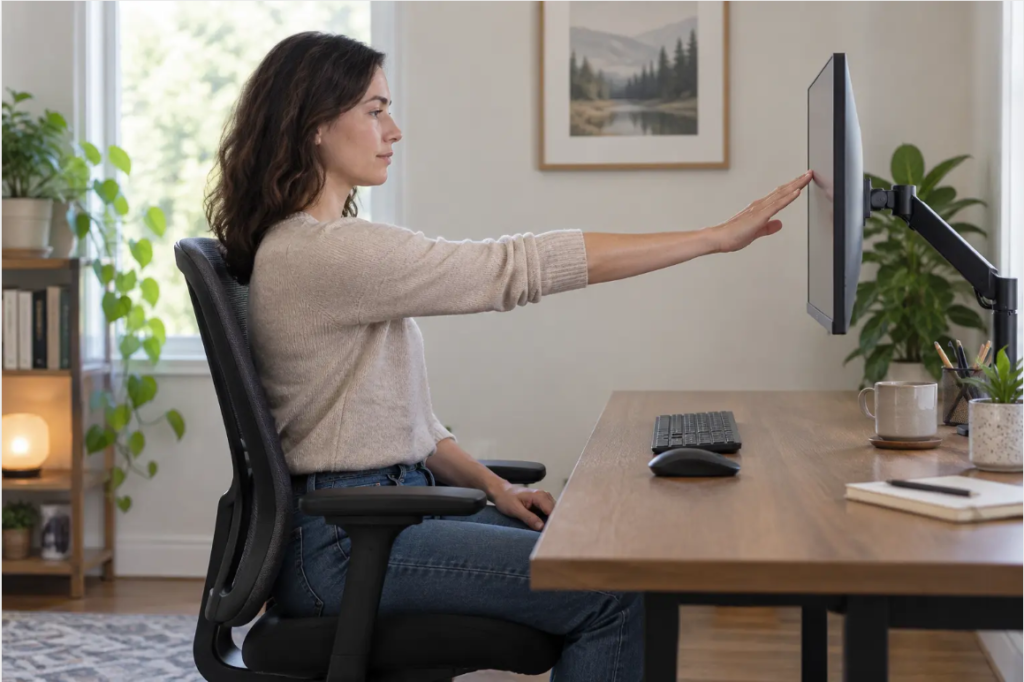
Start with your monitor around an arm’s length away, then check the actual distance from your eyes to the front of the screen. OSHA gives a general preferred range of 20–40 inches (50–100cm). Use readable text and a supported working position to refine the setup rather than choosing a distance from screen size alone.
Why Published Monitor-Distance Ranges Differ
OSHA’s monitor guidance uses 50–100cm, while the illustration in CCOHS’s positioning guide shows 40–74cm. CCOHS explicitly treats such ranges as starting guidelines and recommends adjusting for the user. The figures are not competing guarantees of a single ideal position.
Set the chair and keyboard first. Check whether you can read your usual email, spreadsheet and browser controls while using the backrest, with your head in a comfortable position. Try text scaling before compensating by leaning toward the display.
Distance guidance and the measurement workflow below were reviewed October 26, 2026. This is a documentation-based setup guide, not a medical assessment or a hands-on monitor test. Images illustrate generic setups.
A Practical Monitor Distance Decision Table
There is no single perfect number for every desk. Use the table below as a decision guide rather than a rigid specification.
| What you notice | What it may mean | What to try first |
|---|---|---|
| You lean toward the screen to read | The screen may be too far away, or text may be too small | Increase text scaling, then move the monitor slightly closer if needed |
| You pull your head back or feel visually crowded | The screen may be too close | Move it a few inches farther away |
| You turn your head often on an ultrawide | The screen may be too close for its width | Center your main work area; try a small distance increase only if it reduces turning while keeping text readable |
| You crane your neck while the distance feels fine | Height or angle may be the problem | Adjust monitor height and tilt instead of changing distance |
| Glare makes the screen hard to see | Lighting, not distance, may be the main issue | Reposition the screen or light source and adjust brightness |
Record One Change at a Time
Measure from your normal eye position to the screen’s front surface, with the ruler or tape held beside your viewing line. Do not measure from the desk edge, monitor stand, back of the panel or wall. Record the application and scaling setting too, so a later comparison uses the same task.
| Illustrative trial plan | Distance and scaling | Question to check |
|---|---|---|
| Record a baseline | For example, 55cm and 100% browser zoom | Can you read your normal document without leaning? |
| Change only text size | Keep 55cm; try 125% zoom | Does readability improve without moving your head? |
| If another change is needed | Keep the new zoom; adjust distance slightly and record it | Is the same task easier while your back remains supported? |
The numbers are hypothetical, not recommended settings or results from our testing. Browser zoom affects page content; other interface text may need a separate operating-system or application setting. Keep a short note of the combination that works for your actual task.
On a Shallow Desk, Measure Viewing Distance Separately
A desk that is 60cm deep does not establish a 60cm viewing distance. Your eyes may be in front of its edge, while the panel sits forward of the rear edge. Measure the assembled setup. Check the stand footprint and wall clearance before moving equipment.
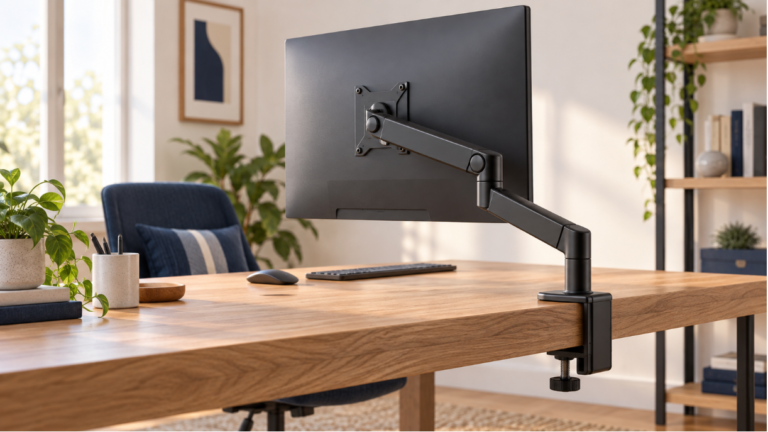
An arm can help only if its installed geometry puts the panel where you need it. Some arms require room behind the desk to fold; a long maximum extension does not state their minimum screen-to-clamp distance. A riser mainly adds height. Use our arm versus riser comparison to identify the movement you actually need.
How to Set the Right Monitor Distance in Five Steps
1. Set your chair and keyboard first
Monitor distance should be adjusted from the position where you actually work. Sit back with your feet supported, keep your shoulders relaxed, and place the keyboard close enough that your elbows stay near your sides. If you move the monitor first and then change your chair position, the measurement is no longer meaningful.
If the rest of your workstation still needs attention, start with our practical ergonomic home office setup guide.
2. Begin at arm’s length
Extend your arm from your normal seated position. Your fingertips should land near the screen surface. This usually puts a standard desktop monitor in a sensible starting range without requiring a tape measure.
3. Test real work—not an empty desktop
Open a typical email, spreadsheet, document, or browser page. A distance that feels comfortable while looking at a large wallpaper may fail when you need to read small interface text. Test the screen with the applications you use for the longest periods.
4. Adjust text scaling before changing posture
If you instinctively lean forward, try increasing display scaling or browser zoom. On a high-resolution 27-inch or 32-inch screen, native text can be unnecessarily small. Scaling lets you keep the display at a comfortable distance while making controls and text easier to see.
5. Make small changes and retest
Move the screen one or two inches at a time. Work for several minutes before deciding. Large changes make it difficult to tell whether distance, height, brightness, or text size solved the problem.
Does a 24-, 27- or 32-Inch Monitor Need a Different Distance?
Screen diagonal alone does not determine a working distance. Compare the resolution, text scaling, screen width and the applications you need to see. Two 27-inch displays with different scaling can require different adjustments for the same reader.
CCOHS notes that a wide screen may need to move farther away to reduce the need to turn your neck. Keep your main work near the center, then check both the central text and the areas you regularly use at the sides. Do not move every larger monitor farther back if doing so makes its text unreadable.
Clues to Recheck Distance and Layout
Leaning toward text, pulling back from the screen, or repeatedly turning to reach an outer window are observations to investigate, not proof that the distance is wrong. Small text, glare, window placement and vision correction can produce similar difficulties.
- If you lean to read: enlarge the text in the actual application, then check whether a distance change is still needed.
- If the screen feels crowded: try a small increase in distance while keeping the same document and text setting.
- If only side windows require frequent turning: move the main task nearer the center before changing the whole display position.
- If a reflection obscures the text: adjust the light or screen orientation; use our monitor glare guide for that separate check.
Persistent eye discomfort, blurred vision or headaches deserve advice from a qualified eye-care professional. A workstation distance checklist cannot identify their cause.
Monitor Height and Distance Work Together
A correct distance cannot compensate for a screen that is much too high, too low, or off to one side. As a general starting point, place the top of the visible screen at or slightly below eye level and keep the main viewing area directly in front of you. Our guide to how high your monitor should be explains the height and downward viewing angle in more detail.
Use this as an initial workflow, then repeat the relevant check when another setting changes:
- Chair and working posture
- Keyboard and mouse position
- Baseline screen position and readable text scaling in your usual application
- Small distance, height or tilt adjustment, chosen for the problem you observed
- Recheck the same task, including text readability and reflections
Height, distance and scaling interact; revisit readability after moving the screen rather than treating scaling as a final step. Desk dimensions matter too; if your surface forces the screen too close or the keyboard too high, review the best desk height for a home office.
What About Laptops, Dual Monitors, and Ultrawides?
Laptop-only setups
A laptop creates a tradeoff: keeping the keyboard close also brings the low screen close. For longer work sessions, a laptop stand plus an external keyboard and mouse lets you adjust screen distance and height independently.
Two monitors
If you use one screen most of the time, center that monitor and place the secondary display beside it at a similar distance. If both are used equally, arrange them in a shallow arc so each screen is roughly the same distance from your eyes. Keep the seam between them close to the center of your body.
For a complete placement and software checklist, see our dual monitor setup guide for a home office.
Ultrawide monitors
Begin with readable text and your main application near the center. If frequent turning is still needed for the work you use at the sides, try moving the screen a little farther back and retest the same task. CCOHS describes extra distance as a possible adjustment for wide screens, not a requirement for every ultrawide. Curvature alone does not establish a suitable working distance.
Do You Need a Monitor Arm?
No. Keep a stable factory stand when it reaches the position you need. A properly sized riser can address a measured height shortfall, but its shelf must support the full monitor base and the device must meet its load limit. A riser does not add desk depth or necessarily let the panel move farther back.
A monitor arm becomes more useful when:
- Your desk is too shallow for the original stand.
- You switch between sitting and standing.
- Two people share the workstation.
- You frequently move the screen for focused work or video calls.
- You need to reclaim desk space beneath the monitor.
If adjustability is the missing piece, see our research-based guide to the best monitor arms for a home office. Choose by monitor weight, VESA pattern, desk construction, and required reach—not by appearance alone.
Distance Alone Will Not Prevent Eye Discomfort
Viewing distance is only one part of a comfortable setup. Glare, dry air, uncorrected vision, long periods of close focus, and excessive brightness can still make computer work uncomfortable.
- Match screen brightness reasonably closely to the room.
- Keep strong window reflections and bare lamps out of the screen.
- Blink normally and take regular visual breaks.
- Look at something farther away periodically instead of maintaining continuous near focus.
- Increase text size rather than leaning toward the screen.
These habits support comfort, but they are not medical treatment. If symptoms continue after sensible workstation adjustments, seek advice from an eye-care or healthcare professional.
Quick Monitor Distance Checklist
- Start around one arm’s length away.
- Use your normal chair position before measuring.
- Test with real documents and applications.
- Increase scaling if you lean forward to read.
- On wide displays, check task placement before deciding whether extra distance helps.
- Keep the main screen centered.
- Adjust height and tilt after setting distance.
- Recheck the setup after changing chairs, desks, or monitors.
Frequently Asked Questions
Is 20 inches too close to a monitor?
Not necessarily. Twenty inches can fall within a commonly cited starting range for a smaller monitor, but comfort and readability matter more than the number alone. If you feel crowded or move your head to see the screen edges, try moving it farther away.
Is arm’s length always the correct monitor distance?
No. It is a convenient starting point. A large ultrawide may work better farther away, while a smaller screen may need to be slightly closer. Text scaling and individual vision also affect the final position.
Should a 32-inch monitor be farther away?
Screen size alone does not decide that. Begin with a readable main task and assess how often you need to view the sides. A little more distance may help if it reduces repeated turning without making the text harder to read. Compare the same task and scaling setting before keeping the change.
Keep the Settings That Work for Your Tasks
Place your monitor about an arm’s length from your eyes, then adjust it using real work as the test. You have found a useful distance when normal text is clear, the screen does not feel visually overwhelming, and you can stay back in your chair without leaning or squinting.
Record the distance and scaling combination that works for your tasks. When something remains difficult, change the relevant setting and repeat the same task so you can tell what helped.
Distance and positioning sources: OSHA: Computer Workstations — Monitors; CCOHS: Positioning the Monitor. Checked October 26, 2026. Worked examples are illustrative and are not product measurements or medical prescriptions.