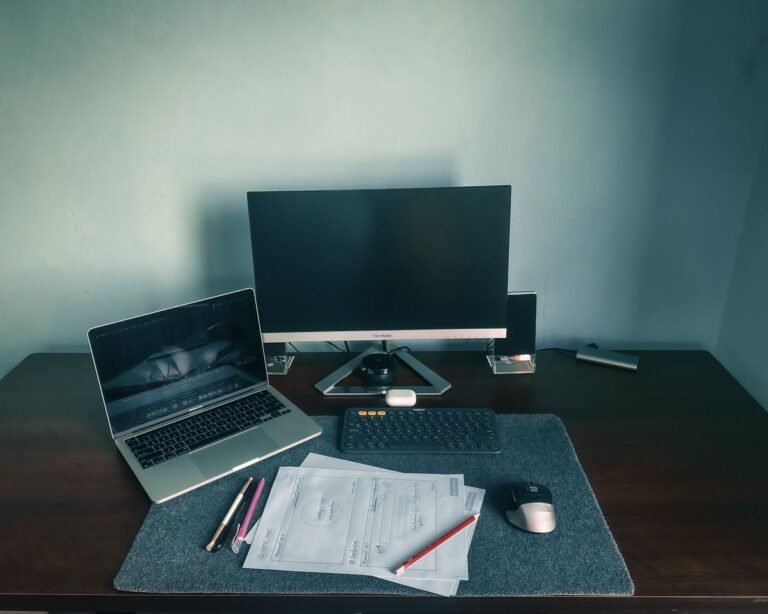
How to Set Up an Ergonomic Home Office: A Practical Guide
Set up an ergonomic home office in this order: chair and desk, screen, keyboard and mouse, then lighting. Use the equipment you already own first. Open a real document, type a paragraph and use your mouse; an arrangement that looks tidy may still put the screen too far away or leave too little space for your legs.
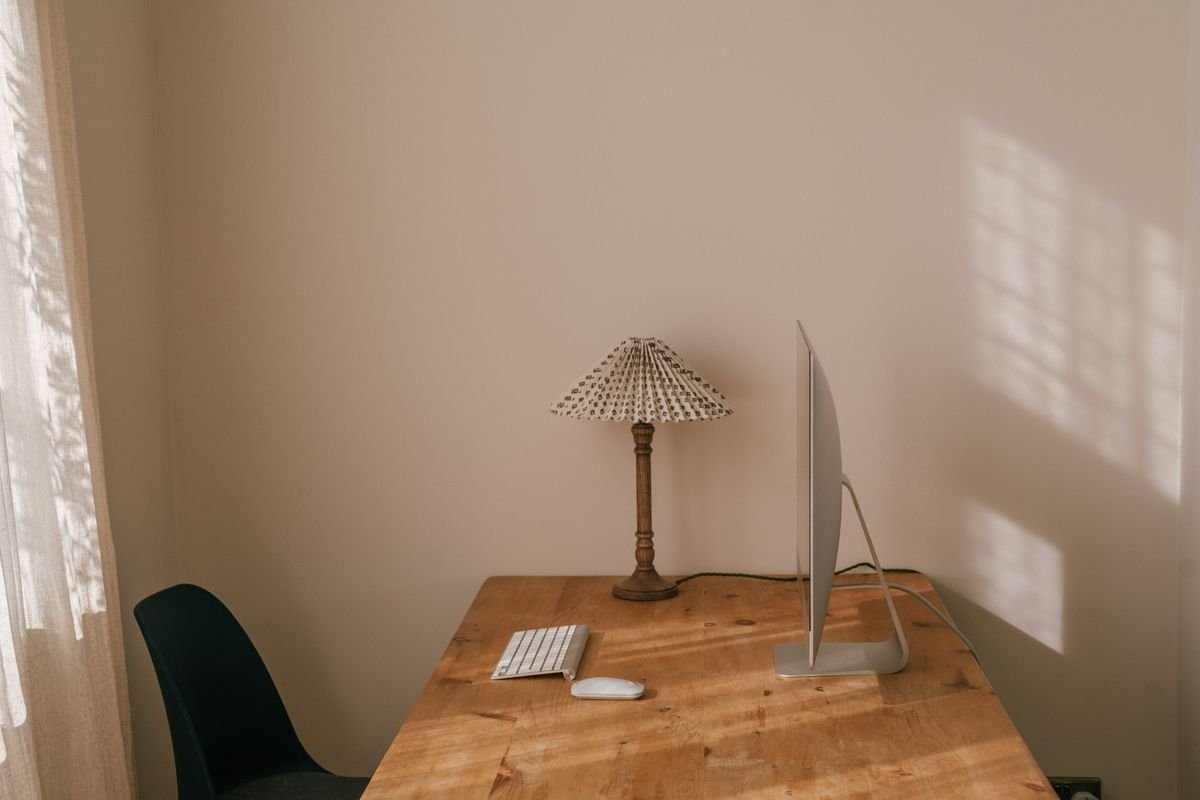
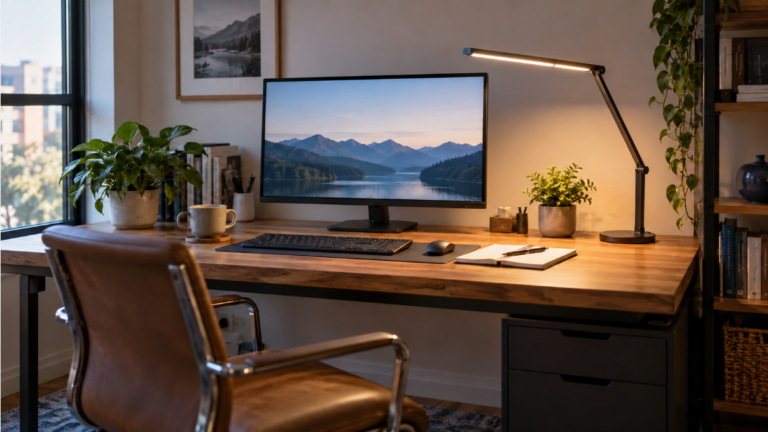
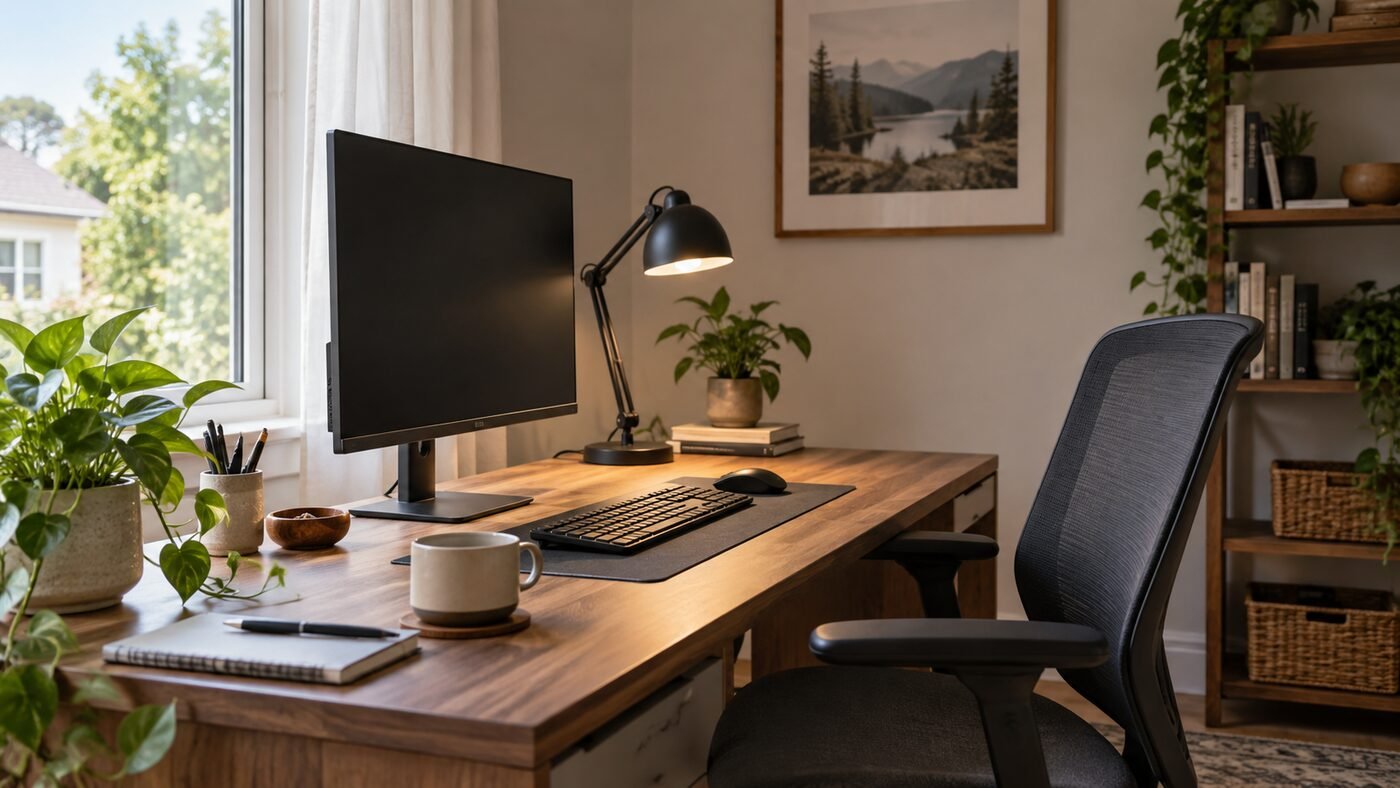
This is a research-based setup guide, not a hands-on product test or an assessment of your workstation. The photograph illustrates a room layout; it does not show measured settings.
Run One Setup Check Before Shopping
Have a tape measure and a note ready. Work through these checks once, then repeat any affected check after moving equipment. A pass here means the arrangement works for your task; it is not a medical or safety certification.
- Sit and type: can you use the keyboard with relaxed shoulders, supported feet and room to move your legs?
- Read: can you read your normal text while sitting back, without leaning forward or tipping your head back?
- Point and click: does the mouse stay close to the keyboard, without an outward reach?
- Check light: can you see the task without a window or lamp reflection obscuring the screen?
- Change position: do the chair, cables and stored items leave room to move?
1. Fit the Chair and Desk Together
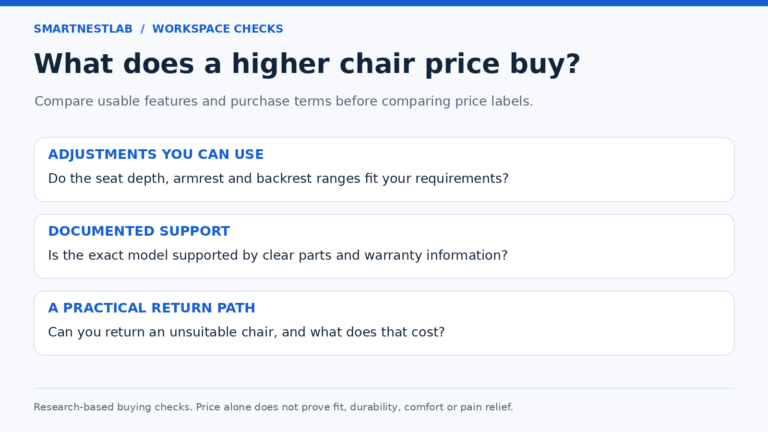
Adjust the chair so your back is supported and the seat edge does not press behind your knees. Check the seat depth as well as height. If the backrest cannot reach you without the seat edge pressing into your legs, record that fit limitation rather than assuming a higher price will solve it.
Next, type at the desk. If the surface is fixed and too high, raising the chair can improve arm position, but recheck foot support and thigh clearance. Add a footrest only if your feet then need support. If you cannot fit your legs under the surface or move them freely, a footrest does not solve that clearance problem. See CCOHS on chair and fixed-desk adjustment.
Record: your usable seat height, seat-depth limitation and anything blocking the chair from moving close to the desk. Use the chair fit checklist and desk height checks for the detailed measurements. For an unstable or failing chair, follow the repair-or-replace checks before continuing.
2. Set the Screen Before Choosing a Riser
Place the main screen in front of your working position. Start with its visible top at eye level or slightly below and a distance at which text is clear without leaning. Increase text size before pulling the screen so close that it crowds the keyboard. Glasses, especially bifocals, can require a lower screen; use the OSHA monitor guidance as a starting reference.
Use the monitor’s own height adjustment first. If it is still too low, record the extra lift needed from the current setting. A fixed shelf can overshoot that gap. The monitor height worksheet explains the measurement, and the riser fit checker compares lift and desk space. Recheck viewing distance and text size after moving the screen.
For two displays, place the one you use most in front; for equal use, start with the pair centered around you. The dual-monitor guide also checks connections before you add a second display.
3. Keep Typing Position Separate From Screen Height
Keep the keyboard and mouse together within easy reach. Move a rarely used device out of the way before adding a larger desk. Check that armrests or the desk edge do not force you to reach forward or hold your wrists at a sharp angle.
Raising a laptop also raises its attached keyboard. For prolonged laptop work, a separate keyboard and mouse allow screen height and typing position to be adjusted independently. If you do not have them, treat the laptop arrangement as a compromise; a taller stand alone does not resolve it. Follow the laptop arrangement guide and input-device placement checks.
4. Fix Reflections and Clear the Working Space
Look at the screen from your normal seat with your usual lights on. Adjust blinds, screen position or lamp direction if reflections obscure the task. A brighter lamp is not the first fix for a reflected window. If paper or keyboard work remains dim, assess light at that surface separately from screen brightness.
Start with the glare checks or task-lighting measurements. Compare lamp mounting options after identifying where extra light is needed.
Remove storage from leg space and leave cables enough slack for normal adjustments without catching your feet. Use the cable-routing guide for placement. If connections are the limitation, check hub and dock compatibility separately from the physical layout.
5. Recheck During Real Work
Try reading, typing and a call in the adjusted layout. Record what still requires an awkward reach or unreadable text, change one setting and compare again. This is a practical troubleshooting sequence, not a controlled product test.
Include short, regular breaks or changes of activity that allow movement; a suitable setup does not remove that need. HSE’s work-routine guidance recommends frequent short breaks rather than infrequent long ones, with timing suited to the work.
Choose One Next Step
Use the remaining limitation to choose a guide. You do not need to buy every category of accessory.
| What remains after adjustment | Next step |
|---|---|
| Feet lack support at the chair height needed for typing | Check the support gap and floor space in the footrest setup guide. |
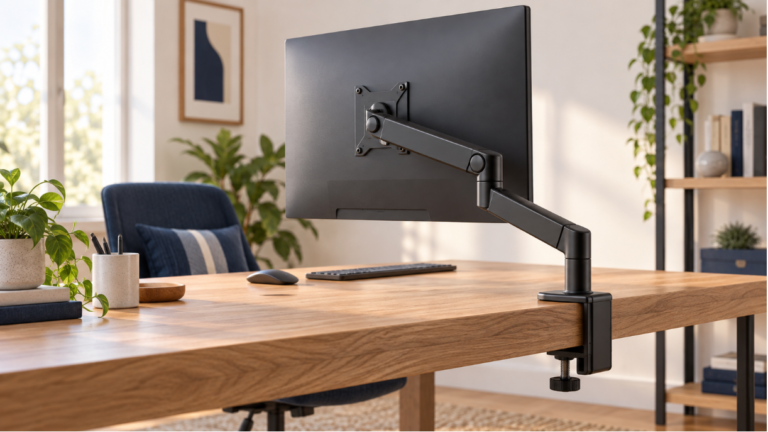
| Monitor stays too low, but desk space is limited | Compare the required lift and footprint with small-desk risers, or check arm versus riser constraints. |
| Chair adjustment cannot provide the fit you recorded | Compare documented fit limits in the chair shortlist; check returns before ordering. |
| Desk height cannot accommodate your work position | Review fixed versus adjustable desk tradeoffs against the range you need. |
Before ordering, finish this note: “My current setup cannot ______. I need ______ adjustment or clearance. The product must fit ______ space and work with ______ equipment.” Check those conditions against the exact model, then confirm the seller’s return terms. The linked buying guides contain affiliate links.
Sources reviewed November 2, 2026: HSE workstation and laptop guidance, the linked CCOHS chair and OSHA monitor references, OSHA desk-space guidance, and HSE’s work-routine guidance. The sequence and shopping note are SmartNestLab’s editorial tools for applying those references.